Overview

The Progress component visually represents the completion of a task or process. It shows how much of the task has been completed and how much is still left.
Usage
Progress bars are used to show the progression of a system operation visually.
Use to show the completion status of an ongoing task.
Use the progress bar when you can determine the percentage of the completed task at any time.Usage
Use the progress icon to show the current progress of an operation flow.
Use the progress icon when space is limited.
Anatomy
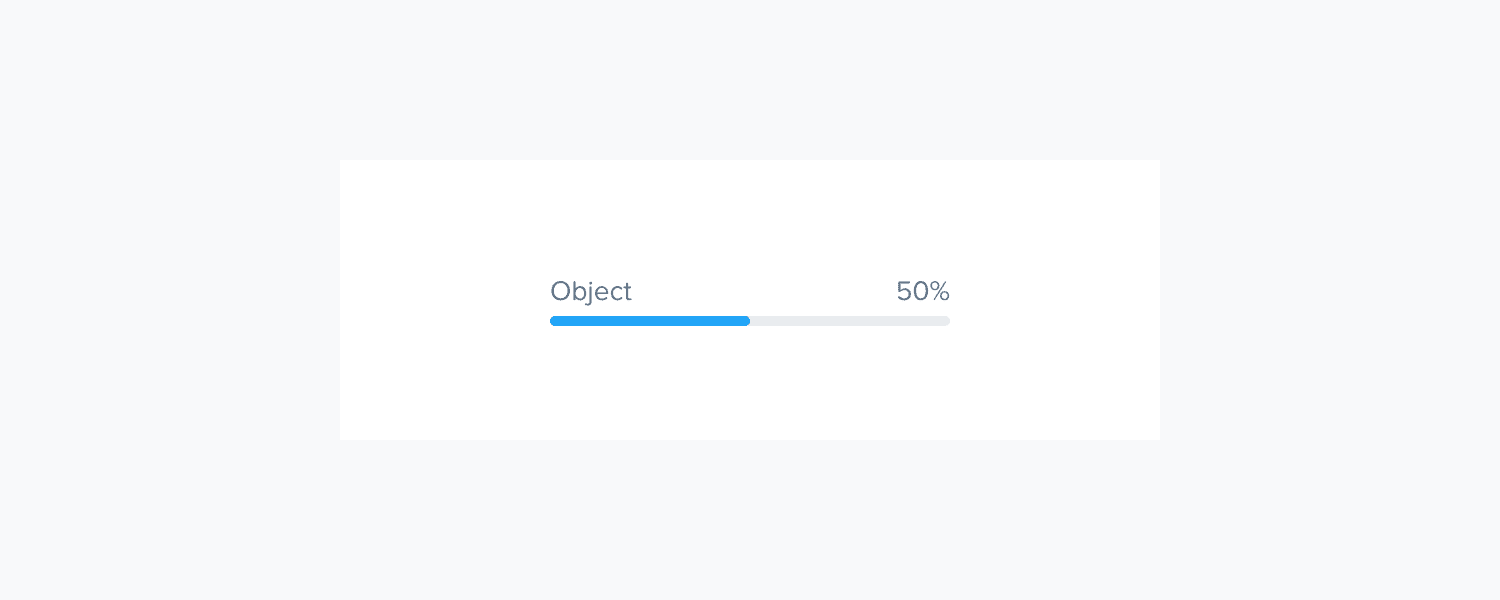
Label text (optional): Provides context about the operation being performed.
Value (optional): Shows detailed information about the progress.
Progress line: The visual representation of the progress.
Progress bar container: Determine the length of the bar by the available screen space.
Variants
Default Progress Bar
The standard horizontal progress bar showing completion percentage.

Donut Progress
A circular representation of progress, useful for compact spaces or when a more visual representation is needed.
Icon
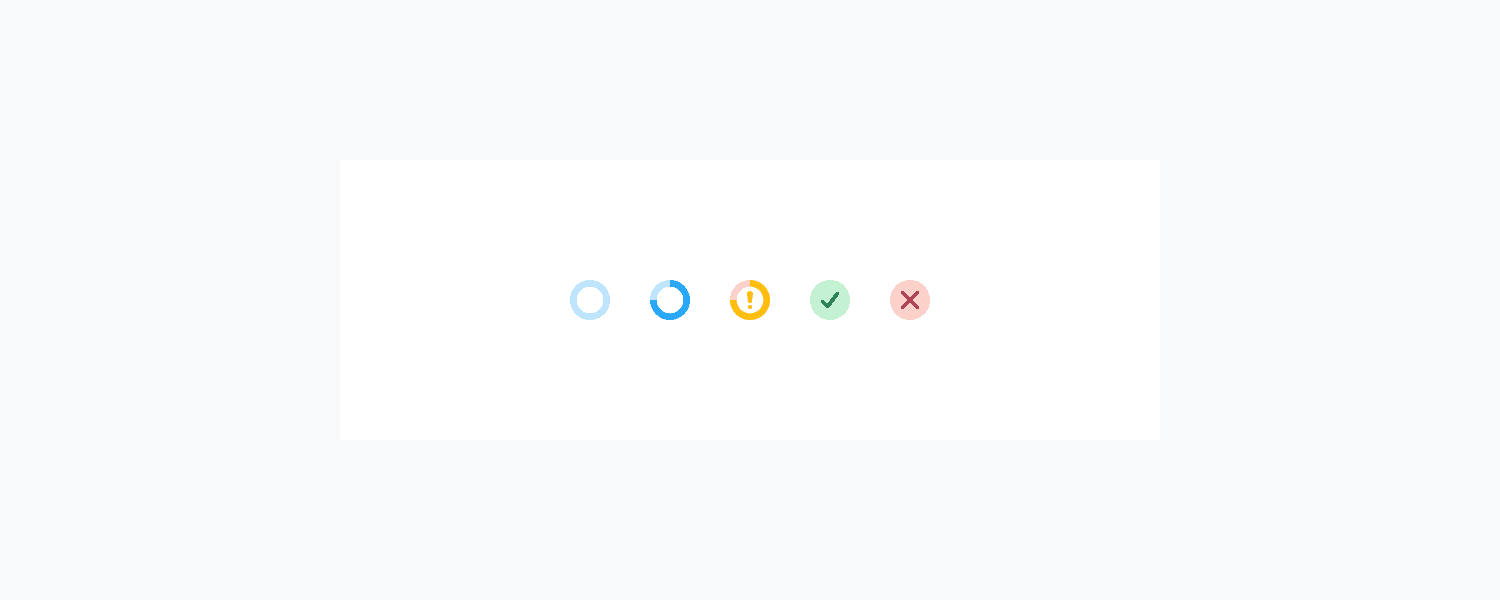
The progress icon shows the progression of a system operation visually. It displays a progress percentage in the form of a circle.
Type
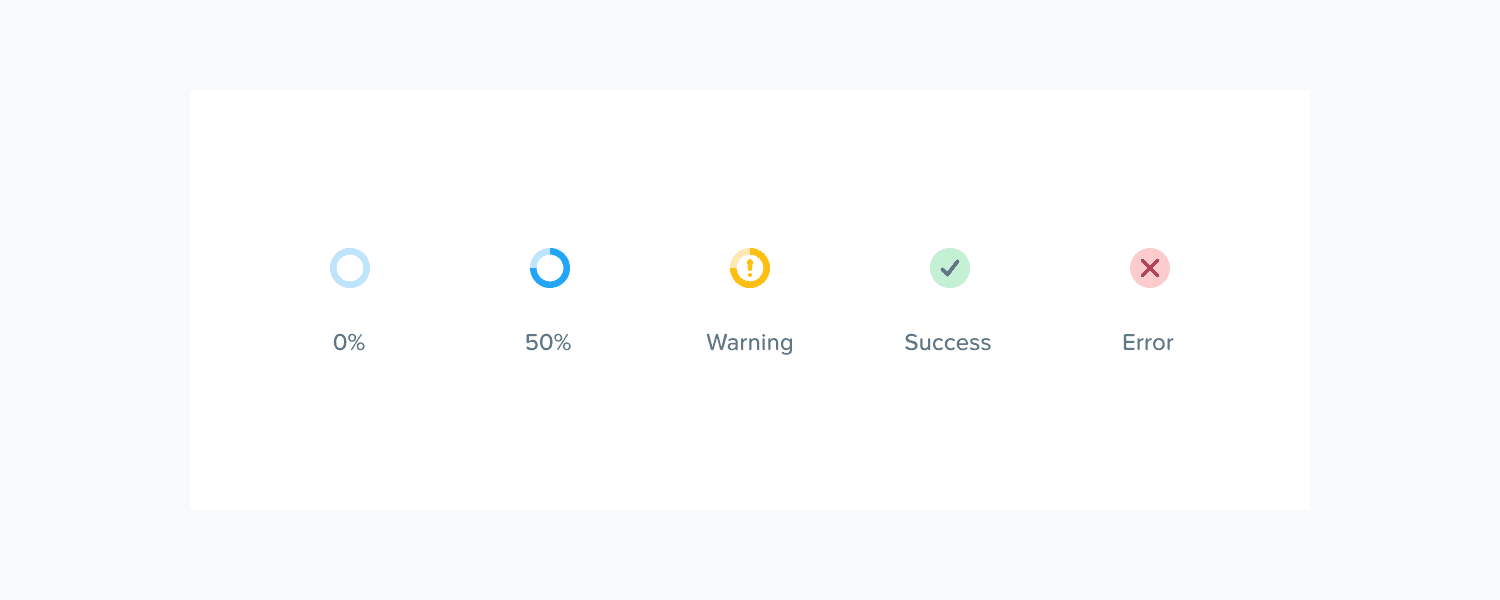
Use semantic colors with icons to show the warning, success, and error state.
Accessibility
Visual information needs to be communicated to screen readers.
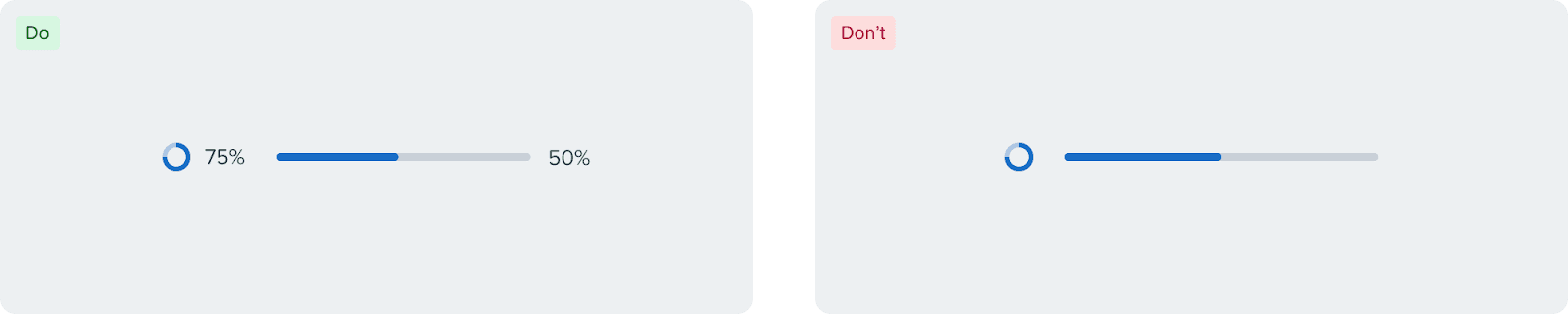
Do not use only color to convey information, always accompany your progress donut or bar with text.