Password Input

23.5

Password Input is designed for secure entry of passwords and other sensitive information.

Password Input

23.5

Password Input is designed for secure entry of passwords and other sensitive information.

Password Input

23.5

Password Input is designed for secure entry of passwords and other sensitive information.

Overview

The Password Input component is a specialized text input designed for secure entry of passwords and other sensitive information. It masks the entered characters by default and provides an option to reveal the text temporarily.

Usage

Use the Password Input component when:

  • Users need to enter sensitive or confidential information

  • Security is a concern and text should be masked by default

  • You need to enforce password requirements or validate password strength

Anatomy

  1. Input field: The main area where users type their password (characters are masked)

  2. Label: Identifies the purpose of the input field

  3. Show/Hide toggle: Allows users to temporarily view the password text

  4. Helper text (optional): Provides additional context about password requirements

  5. Error message (optional): Displays validation errors

  6. Password strength indicator (optional): Visual feedback on password security

Variants & Props

  • Show/Hide Toggle: Option to reveal password text temporarily

  • Password Requirements Display: Shows criteria for valid passwords

  • Password Strength Meter: Visual indicator of password security level

  • Size Variants: Standard or compact sizing

  • Disabled State: Non-interactive state

  • Error State: Indicates validation issues

Content Guidelines

  • Use clear, concise labels like "Password" or "Create password"

  • Display password requirements upfront before any validation

  • Password hint text should clearly communicate minimum requirements

  • Error messages should be specific about which requirements aren't met


Accessibility

Password Requirements

Password requirements should be shown upfront prior to any validation.

General

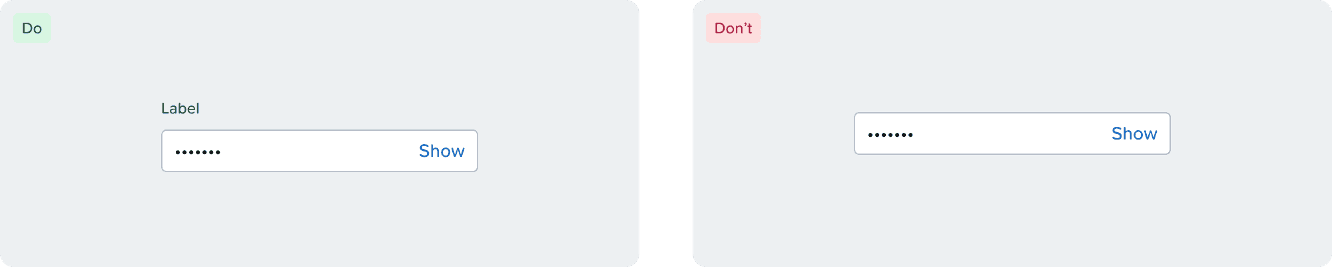
Input should have a visible and programmatic label.

Formatting

Formatting requirements should be displayed in a persistent manner (not as placeholder text that is replaced as the user enters data).

Use of Color

Error and warning messages should use appropriate icons with text as to not rely on color as the only means of indicating error.

Keyboard Interaction

  • Tab navigation to access the input and show/hide toggle

  • Ensure the show/hide toggle is accessible via keyboard

  • Proper focus management between the input field and show/hide control

Help make this page more useful.

Help make this page more useful.

Help make this page more useful.