Content Guidelines
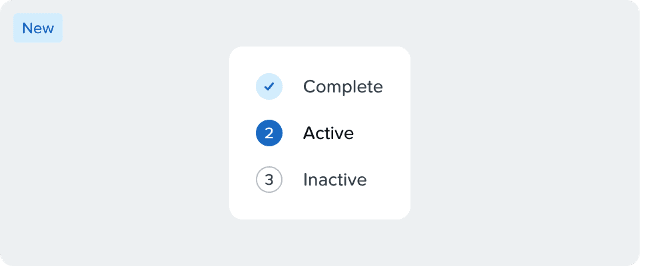
Steps or steppers are used to handhold the user through a multi-step flow or process. This helps set clear expectations for the user about the scope of the task.
We follow these basic rules while writing content for the steps:
Length
Keep step labels short, ideally 2–3 words.
Avoid long phrases as this reduces scannability
Casing
Use Title Case for step labels
Keep proper nouns as is
Punctuation
Do not use punctuation at the end of step labels
Use hyphens only when they are part of a compound word
Action consistency
Either start all step labels with an action word or none of them
Avoid mixing action-led and noun-led steps within the same flow
✅ Select Protection Domains | Run Prechecks | Create Categories | Create Protection Policies | Create Recovery Plans | Review
Accessibility
General
Where the user is at in the process and how many steps there are is communicated to screen readers.
Use of Color
Steps use more than color to indicate the status of each step.

Responsiveness
By default the component will wrap when there's not enough space. But we recommend using to the condensed version of the steps component when the content doesn't fit in one line at the breakpoint. More responsiveness guidelines here.


Keyboard Navigation
[Tab] to navigate into the listbox.
Focus on the first selectable step.
If a step item is selected, focus on that one.
If you tab in, out, and in again, retain focus on the last item that was focused.
[↑/↓] or [←/→] choose previous/next step depending on the layout.
[Enter] or [space] to select steps.
[Tab] focuses on the next component.
When focused on steps with tooltips, the tooltip is shown.