Tutorial

24.1

Guides users through workflows or features

Tutorial

24.1

Guides users through workflows or features

Tutorial

24.1

Guides users through workflows or features

Overview

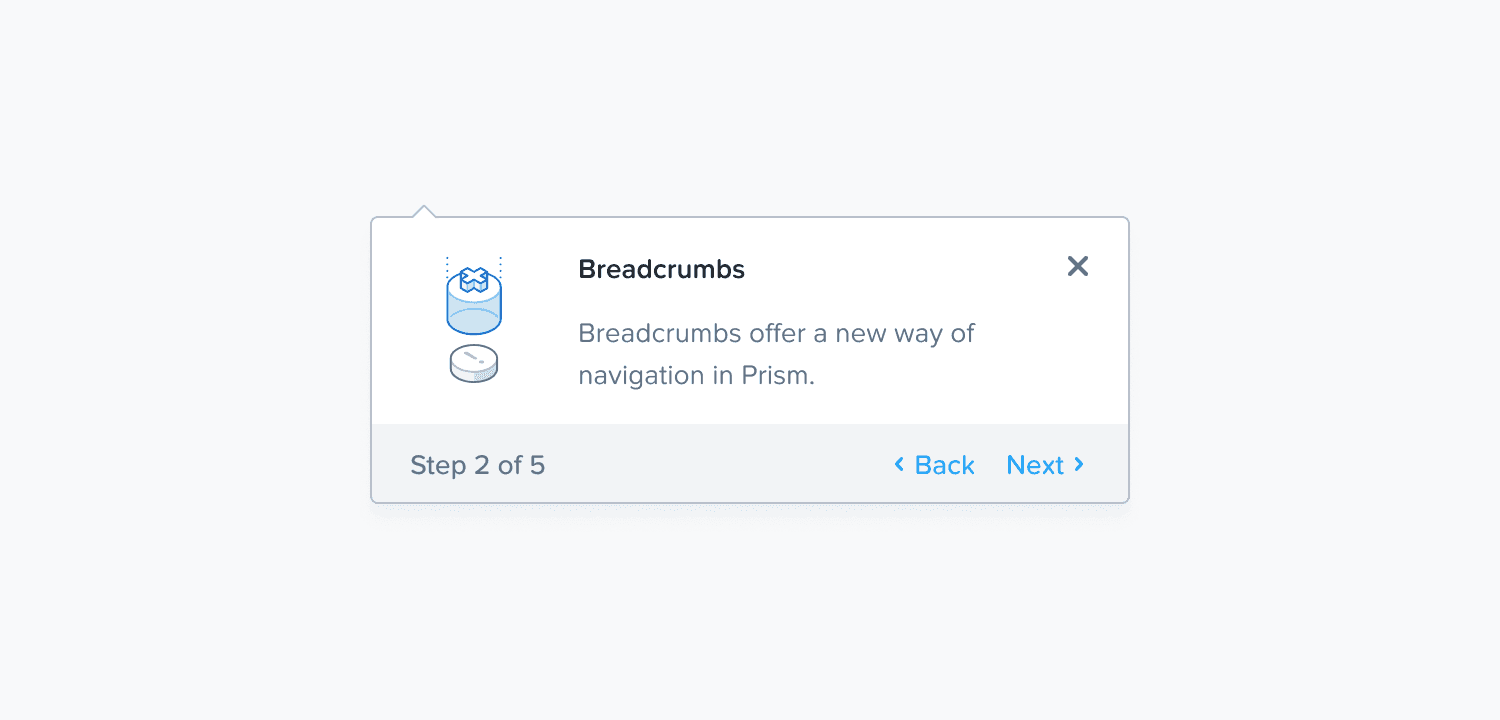
A pop-over tooltip. It has a title, image and a back, next buttons

The tutorial component guides users through new or critical workflows or features.

Usage

Some of the pointers to keep in mind:

  • Provide a title to better guide the user through the feature.

  • The width of the component is fixed to 350px, do not increase the width.

  • The size of the image that can be inserted is 310px x 310px. Maintain the size.

  • Keep the height of the component as short as possible.

  • Images should have null alt text (alt="") if it is decorative; if image conveys information, provide appropriate alt text to describe purpose

Anatomy

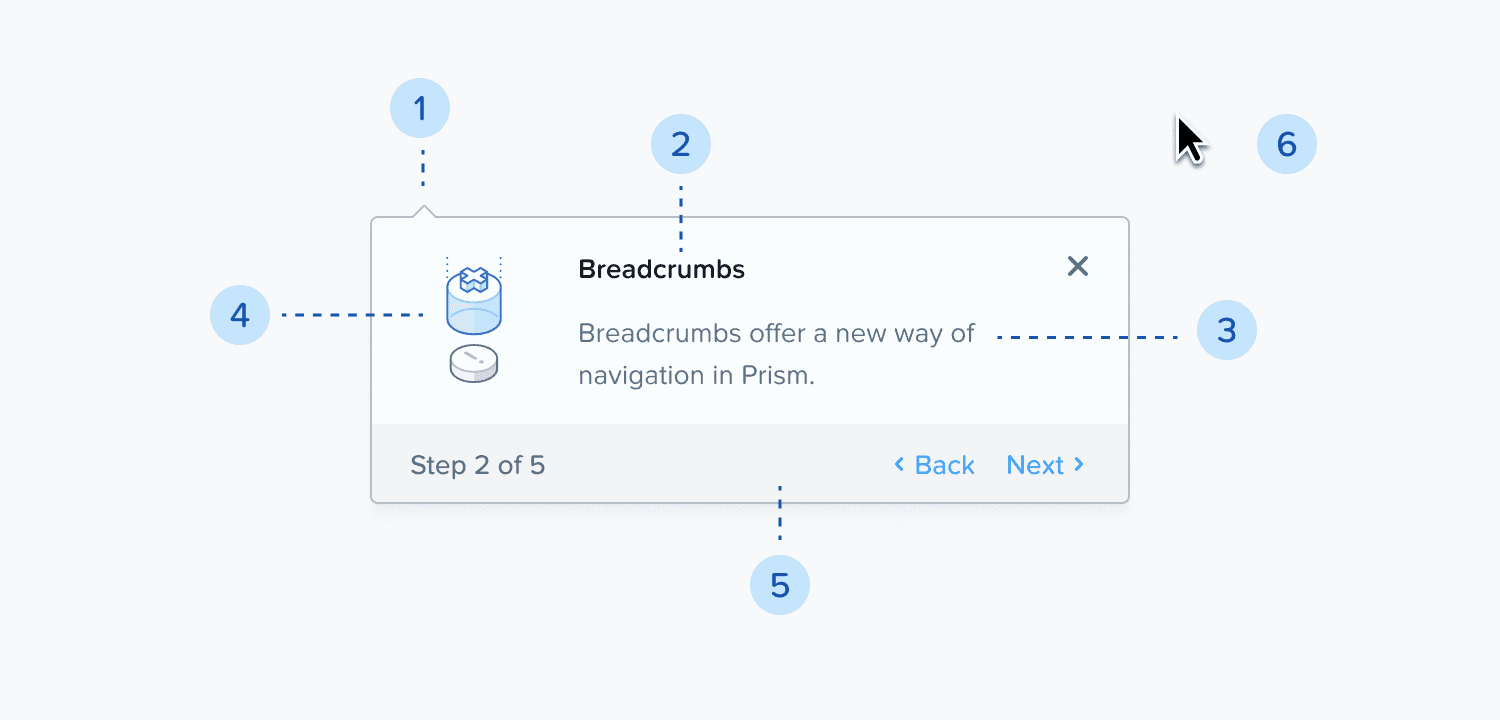
A breakdown on the tutorial pop-over into sections
  1. Tooltip: See usage guidelines.

  2. Main text: This can be the title or a paragraph if you don't need one.

  3. Secondary text: Complementary text when using a title. OPTIONAL

  4. Illustrations: Supplementary visual enhancement. OPTIONAL

  5. Footer: Contains step counter and tutorial actions.

  6. Target container: A visual indicator that highlights a component within the tutorial.

  7. Virtual cursor: A visual indicator that highlights an interaction within the tutorial. This can be configured to activate UI elements.

Type

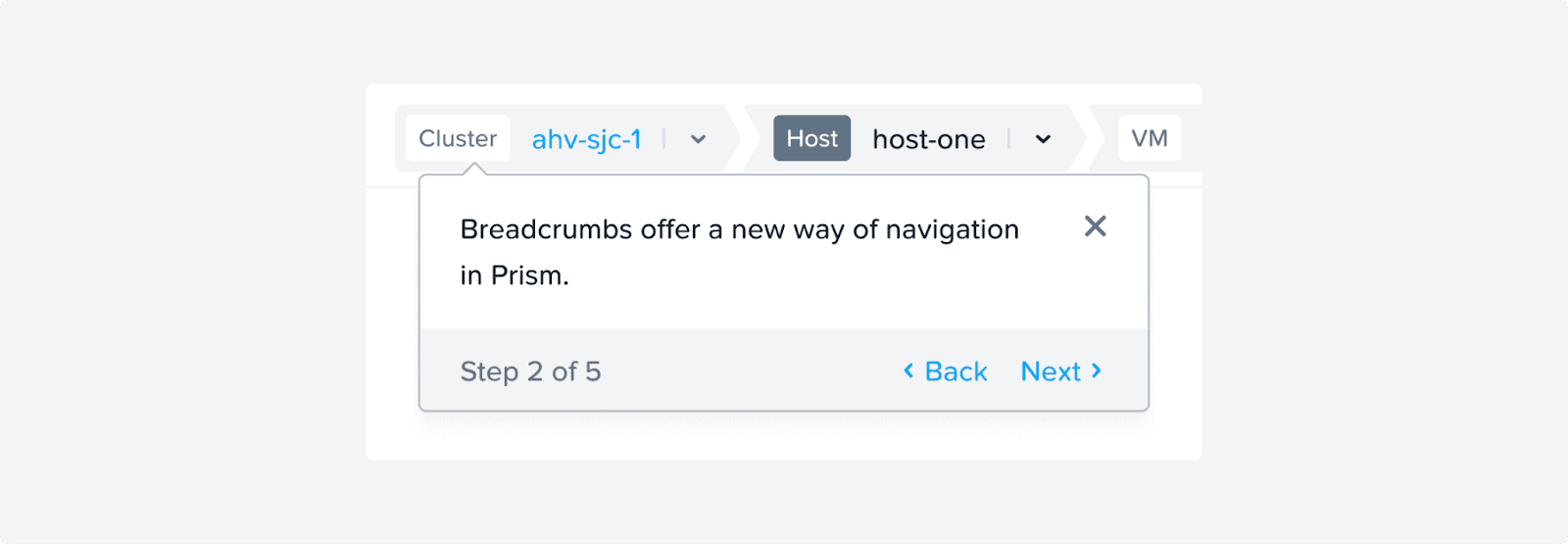
Interruption Level 1

The user can dismiss the tutorial at any time. The popover appears over the existing UI without adding any additional focus.

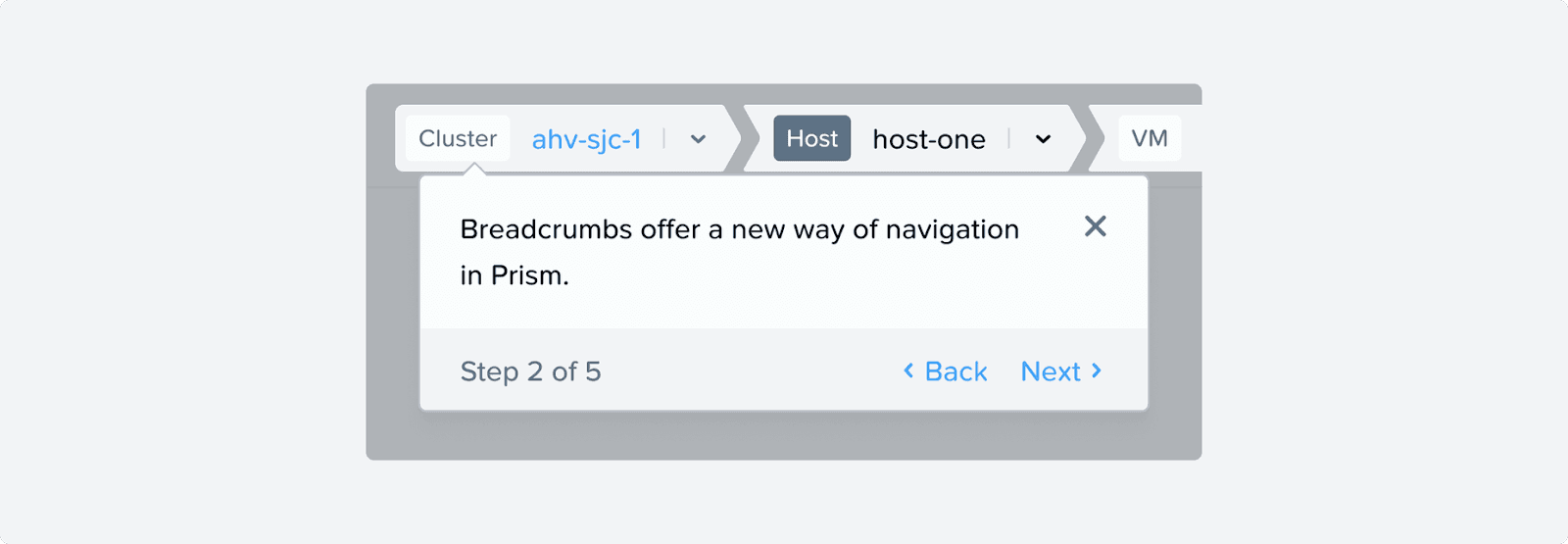
A breadcrumb with a tutorial popover showing its usage

Interruption Level 2

An underlay covers everything behind the targeted UI elements. The user can dismiss the tutorial. It forces focus.

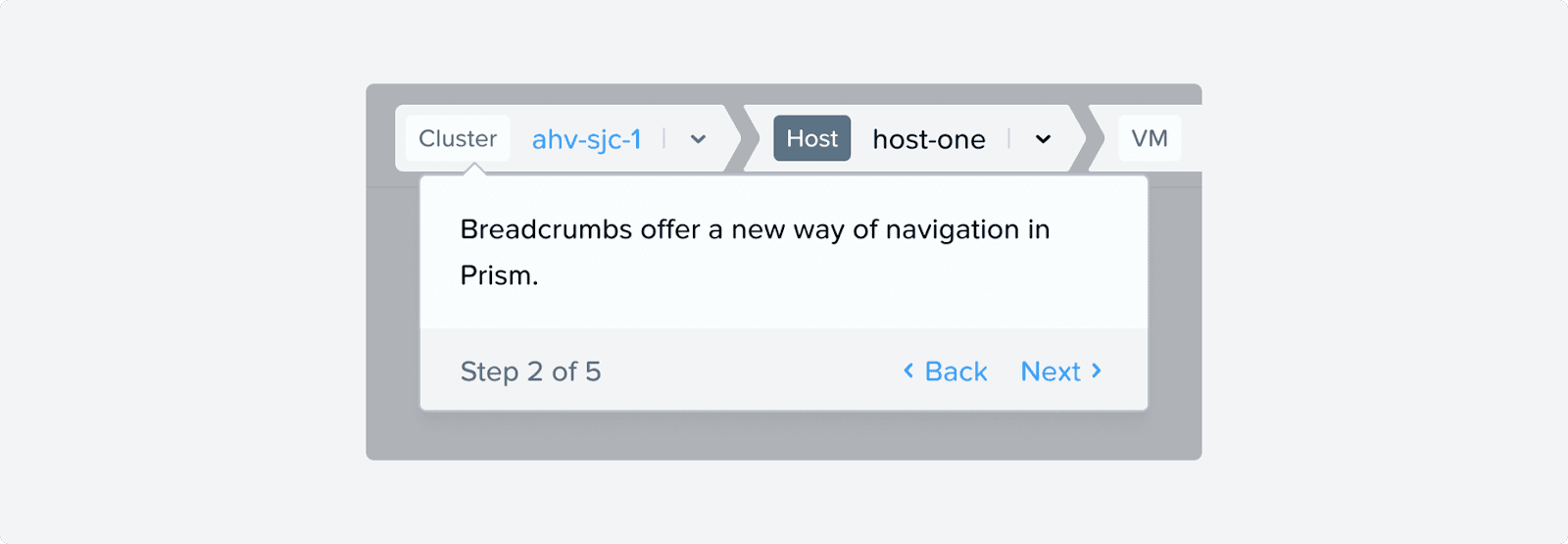
A breadcrumb with a tutorial popover showing its usage isolating the component

Interruption Level 3

Same as level 2 it adds an underlay to focus on the tutorial. This level of interruption does not allow the user to dismiss it. It requires completion to be dismissed.

A breadcrumb with a tutorial popover showing its usage by blocking everything ellse on the screen.

Composition

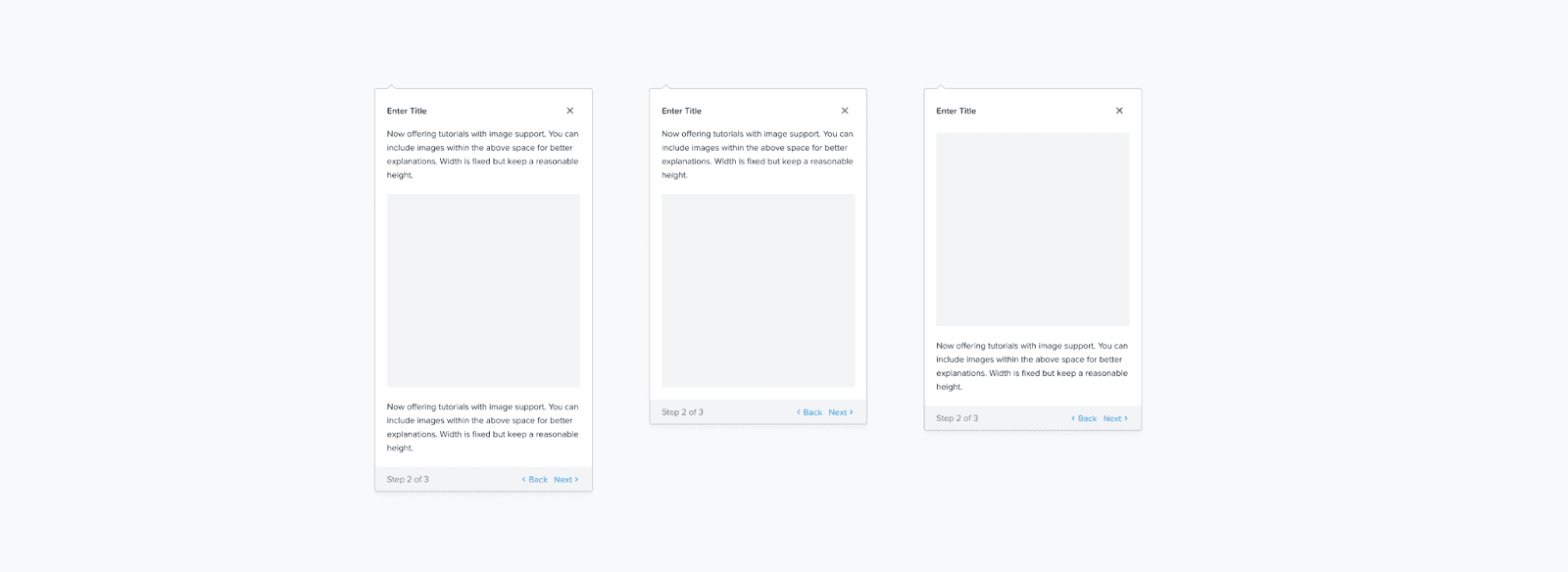
Various compositions are possible with different combinations of components.

Three different versions of tutorial popovers

Variations

The component has two variations:

  1. Dismiss: The component can be dismissed. To turn it on or off, use the toggle on the right side panel.

  2. Caret: The component can have caret. To turn it on or off use the toggle on the right side panel.

Content Guidelines

Steps

  • Only put one piece of information or action per step. Keep each step concise and to the point.

  • Limit the number of steps you use. Keep the tutorial lightweight.

Actions

  • Use Got it and Confirm instead of Next for the final step.

  • Images should have null alt text (alt="") if it is decorative; if image conveys information, provide appropriate alt text to describe purpose

Accessibility

Any illustrations or images used should have null alt text (alt="") if it is decorative; if the image conveys information, provide appropriate alt text to describe the purpose.

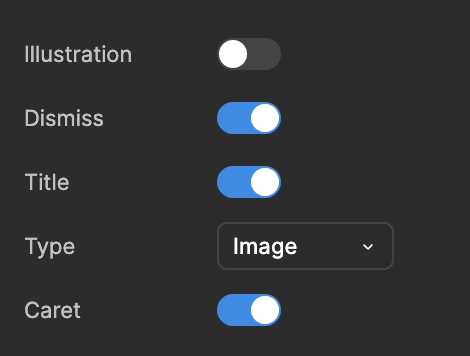
How to Enable Images

To enable image within the tutorial component, change the type to image in the dropdown from the options in the right panel.

Figma options to show images in the tutorial component

Help make this page more useful.

Help make this page more useful.

Help make this page more useful.