Introduction
At Nutanix, we use isometric illustrations. This style lets us show 3D objects on a flat surface without distortion. Isometry helps us fit more items into a small space compared to other styles, making it great for explaining the technical ideas behind our products.
Isometric illustrations show three sides: Top, Left, and Right.
Right now, we combine Scale, Shear, and Rotate tools in Illustrator to create our isometric images.
Isometric Illustration Style
Light Source
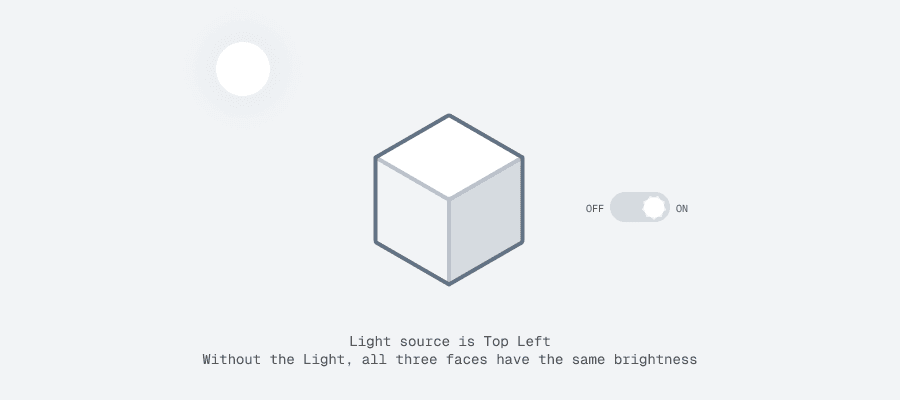
An external light source is positioned at the top left of the illustration, resulting in the top face being the brightest while the right face appears the darkest.
There are no internal light sources present in the illustration. Luminous elements such as bulbs, lamps etc. are influenced by this external light, with their illumination represented by the lightest colors.
Fill Color
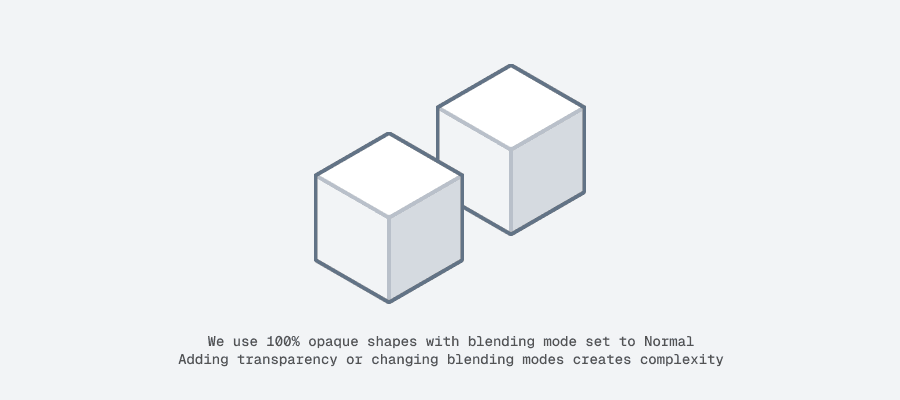
Fill color in Illustrations is always solid, at 100% Opacity. No gradients are applied.
The blending mode for all illustrations is set to Normal, blending mode cannot be set to Multiply or any other. This is to ensure the Illustration renders the same across platforms and screens.
Transparency is depicted through solid fills with a change in color tint.
Strokes
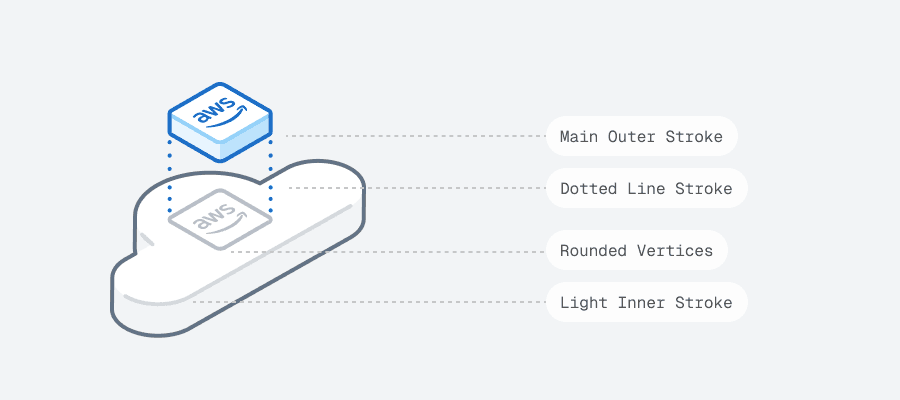
To improve visibility and detail, a 2px wide stroke serves as a border around the illustrations. All corners and edges are rounded for a smoother appearance. Dotted lines, set at 2 pixels with a 0 pixel dash and a 6 pixel dot, effectively represent motion or the flow of information.
While exporting SVGs from Illustrator, we ensure that dotted lines are converted to fills before adding the illustration to the Library.
The outer strokes should be solid 2px lines in the darkest shade, while the inner strokes can be either solid or dotted in the second darkest shade. We also incorporate lighter colored strokes within the illustration to highlight details as necessary..
In dark mode, these values are inverted, utilizing the lightest color for the outer stroke.
Animations and transitions maintain a consistent stroke width of 2px during scaling.
Effects
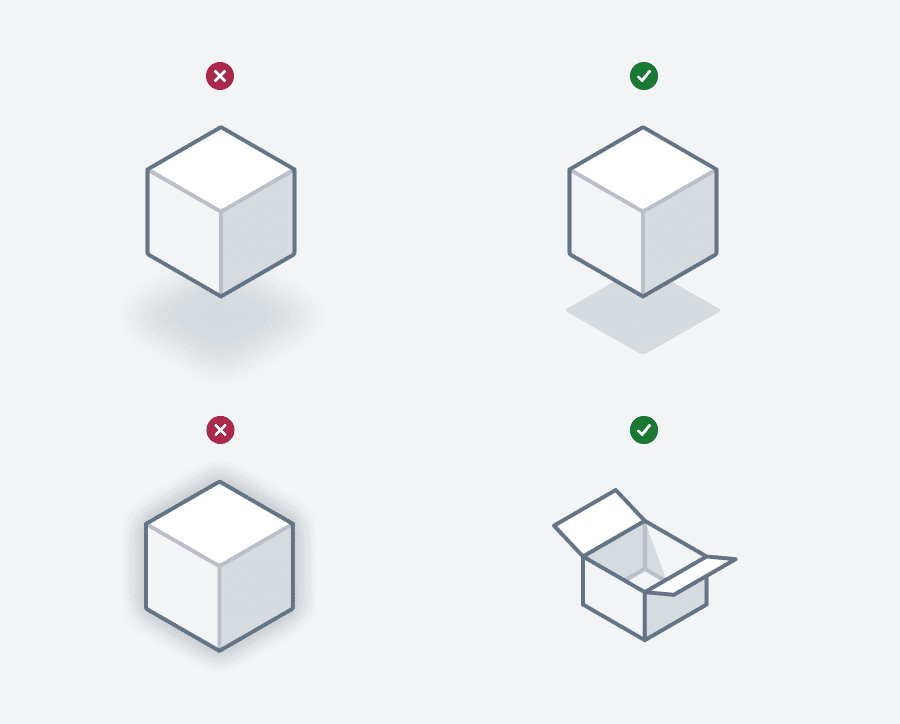
The Illustration Library currently does not support effects like drop shadows or blurs.
That said, there are very few instances where objects can display an inner shadow, such as within tunnels, inside boxes etc. This inner shadow must also be a solid fill at 100% opacity.
Keep in mind that drop shadows are not suitable for illustrations.