Overview
The Tech Preview pattern communicates to users that a feature is in a preview or beta state and not yet ready for production use. It consists of two main components:
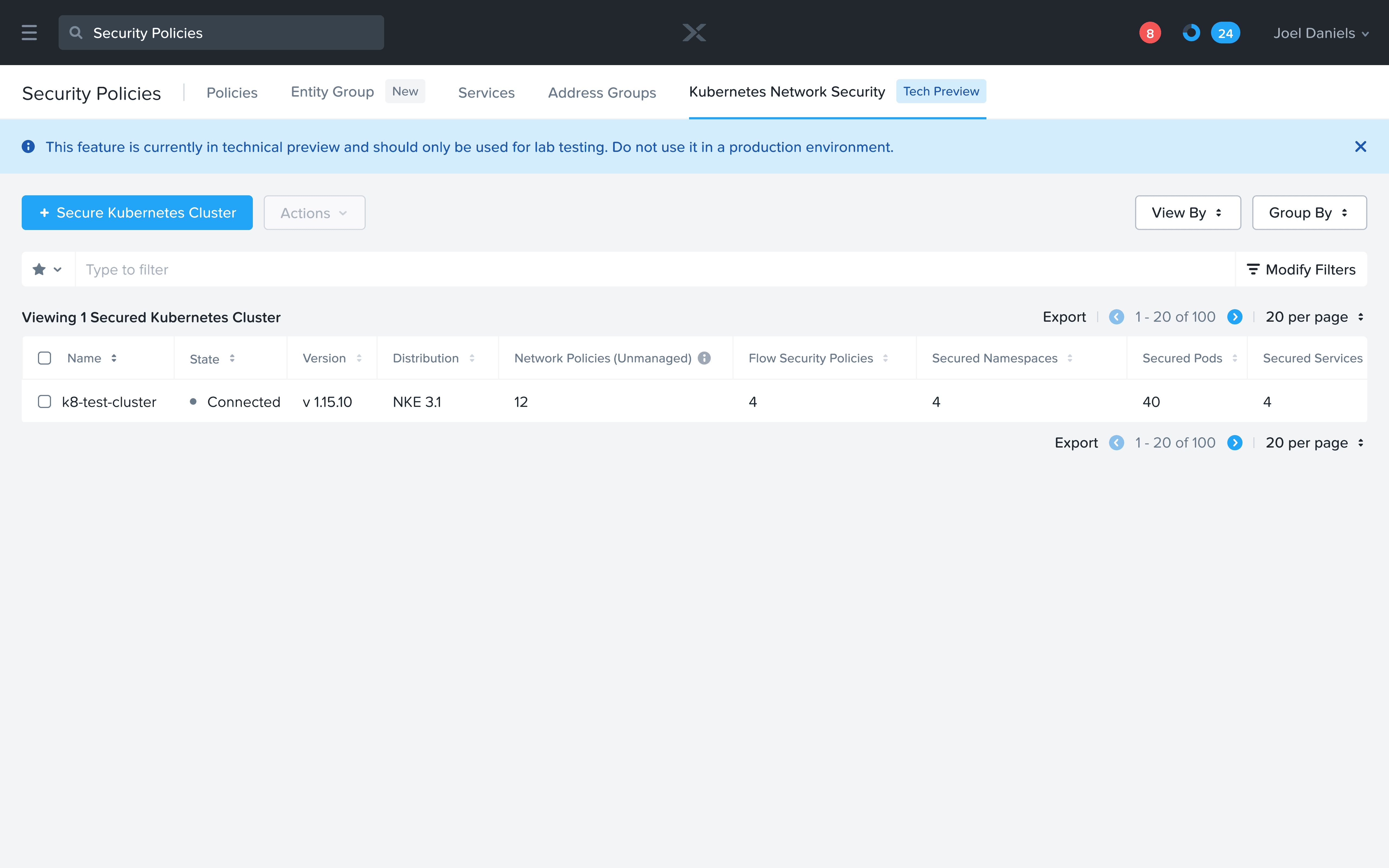
Tech Preview Badge: Located in tab navigation adjacent to the feature name
Warning Banner: A dismissible information/warning banner that clearly states the feature's limitations
This pattern helps set proper expectations for features still under development or testing while allowing users to explore new functionality in a lab environment.
Best Practices
Consistent Placement: Position the Tech Preview badge at the appropriate level in the navigation hierarchy
Clear Communication: Use straightforward language to explain the feature's preview status
Visual Distinction: Maintain consistent styling for all Tech Preview indicators
Banner Visibility: Ensure the warning banner is prominently displayed when accessing the feature
Appropriate Hierarchy: Place the badge at the highest logical level in the navigation
Dismissible Warnings: Allow users to dismiss the warning banner after reading
Complete Coverage: Include the badge on all relevant entry points to the feature
Do's and Don'ts
Do's
DO place the Tech Preview badge directly adjacent to the feature name
DO ensure the warning banner is clearly visible when accessing the feature
DO use consistent styling for all Tech Preview indicators
DO make the warning banner dismissible
DO use clear, concise language in the warning message
DO explicitly mention "not for production use" in warnings
Don'ts
DON'T obscure or minimize the Tech Preview indicators
DON'T use different terminology across different preview features
DON'T use alarming colors that might suggest an error rather than a status
Help make this page more useful.