Overview
Entity Browser (EBR) is a standardized table component for displaying, filtering, and managing collections of entities across Nutanix applications. It provides consistent user experience through uniform styling, behavior, and interaction patterns for listing, selecting, grouping, and performing actions on data sets.
The component supports various features including:
Customizable table views
Advanced filtering
Group-by functionality
Export capabilities
Row selection and batch actions
Client-side data joining
Accessibility compliance
Best Practices
Action Bar
Up to 1 primary button
Normal
Split
Dropdown

Secondary
Up to 4 secondary buttons or 3 secondary + more actions
Normal
Dropdown
Use 10px between buttons and don’t use any separators.
Use the button group component when we have multiple secondary actions
When there’s not enough space, truncate buttons into the dropdown menu
More actions button can is always enabled as EBR cannot control the button’s logic from component level
Group related actions logically: Place frequently used actions as primary buttons and group less common actions in dropdown menus.
Disable actions appropriately: Ensure actions are disabled when not applicable to the current selection.
Use consistent action placement: Follow the standard pattern for action button positioning.

View Configuration
Use appropriate naming conventions: Name your EBR files using the format "<EntityNamePlural>EBR" (e.g., HostsEBR, AlertsEBR) for consistency and discoverability.
Configure columns thoughtfully: Only display the most critical information in default views, with additional data available through custom views.
Ensure column alignment: Text should be properly aligned and truncated when necessary using components like TruncatedSpan.
Filtering
Filter Bar
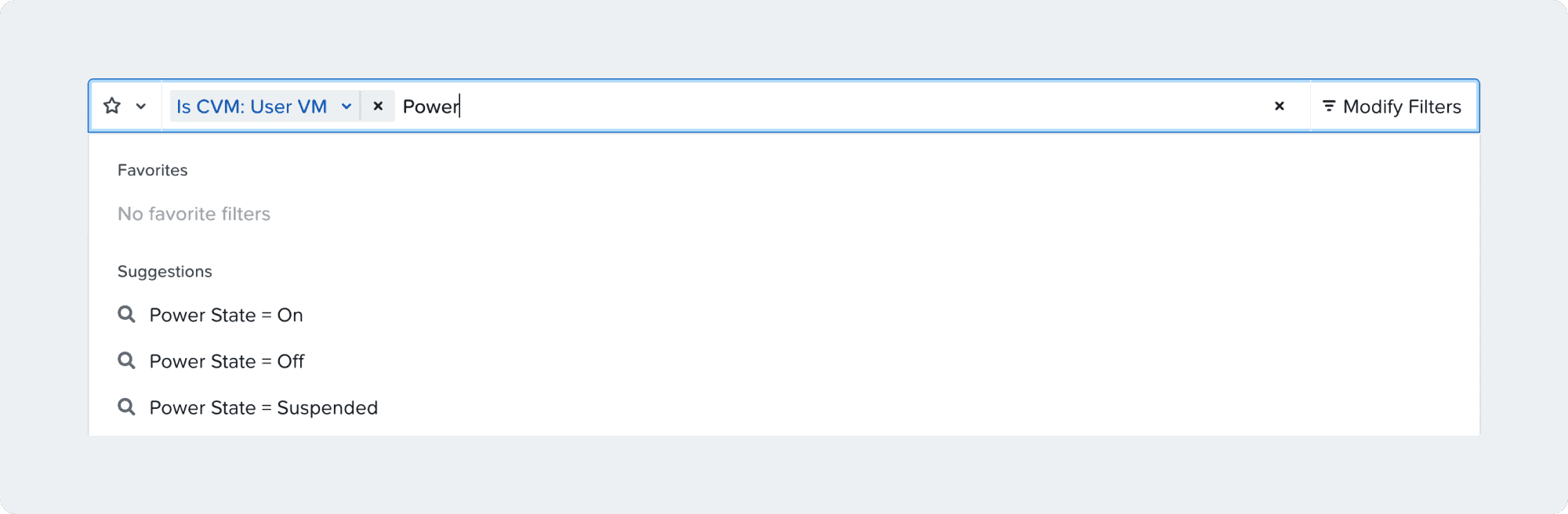
The filter bar allows users to quickly filter by queries
You can also select views and grouping by through the queries on the filter bar
Any filters added can modified through a dropdown triggered by clicking on the tag
Filter Panel
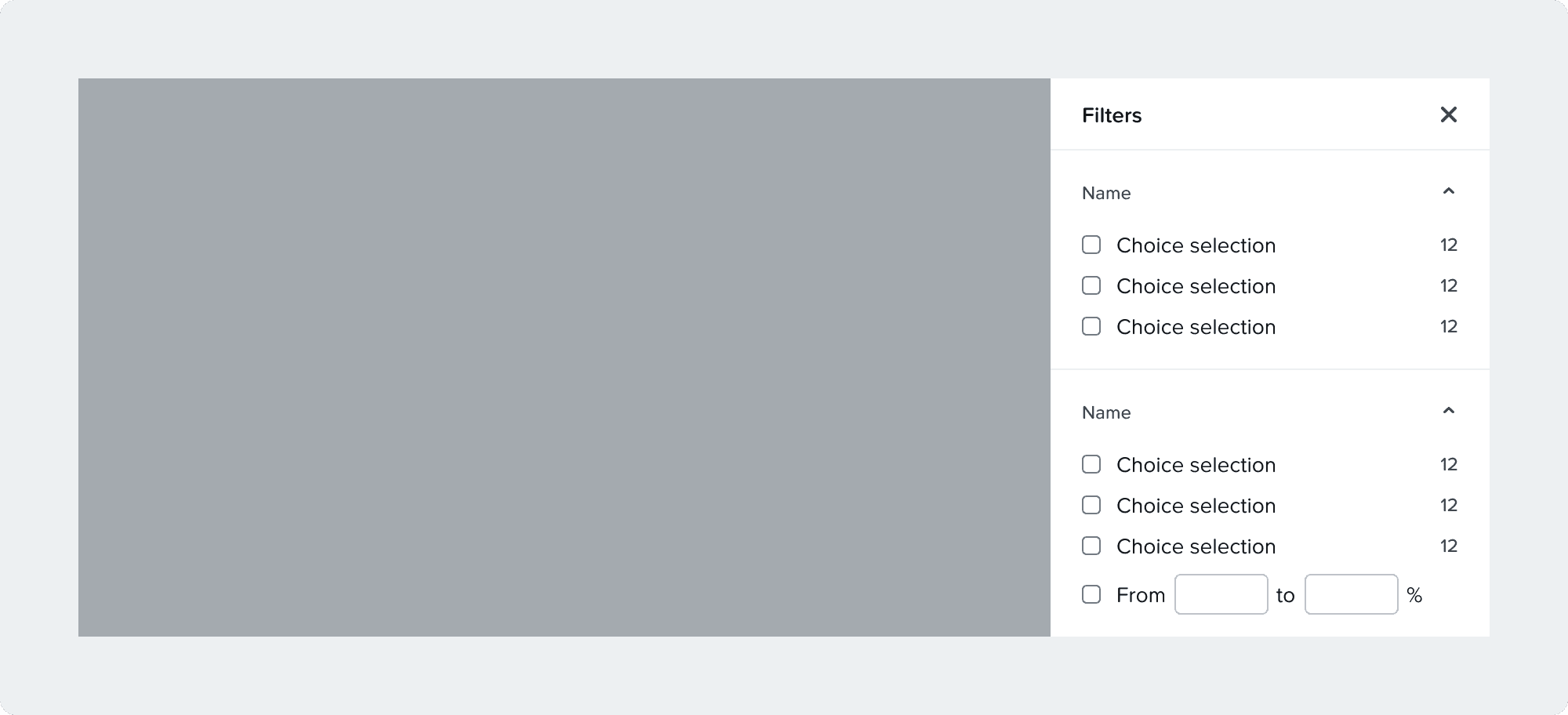
The filter panel is triggered through the “modify filters button”
Opening the filter panel closed the side panel and vice versa
The filters order can be customized for each application
Users can sort A-Z, Z-A
String
String filters are rule based
Adding multiple rules filters through any of them, not all of them Meaning it’s an “or” query
This is mainly used for the name column

Numeral
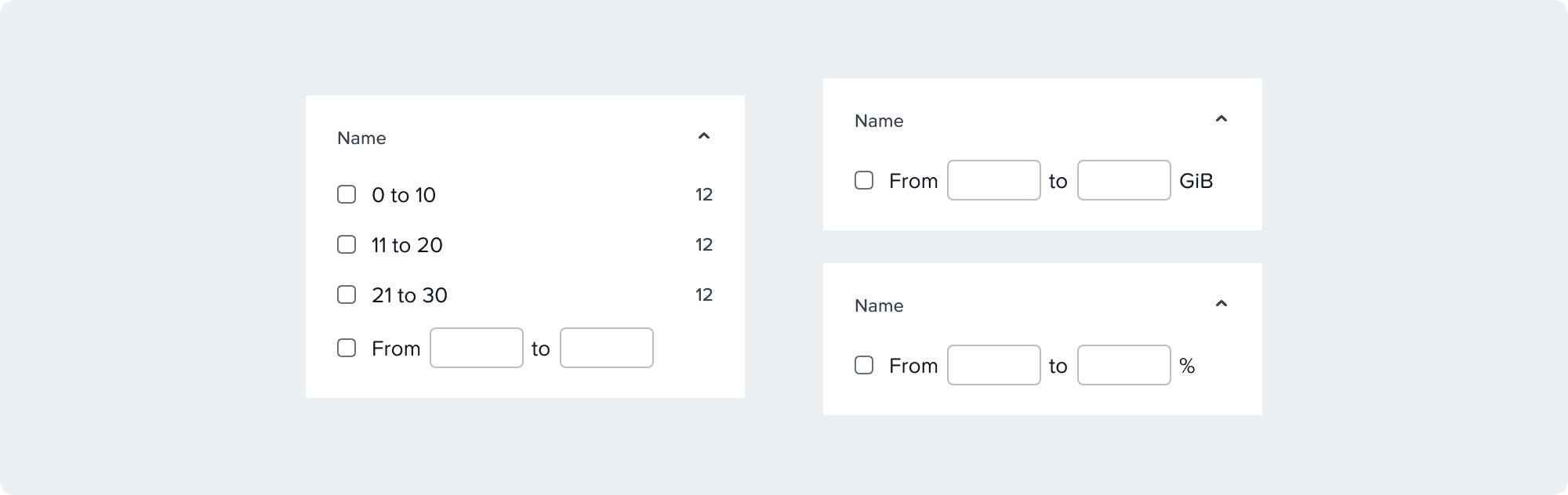
Numeral filters are used for columns like capacity or counts
Users can filter through pre-defined or custom ranges
Static Select
Static select filters are for predefined values (power states, hypervisor)

Dynamic Select
Dynamic select filters are for dynamic values (cluster, category)

Radio Filter
By default no values are selected
A selection can be removed
Only one value can be selected at a time

Best Practices
Implement proper filter types: Use appropriate filter controls (dropdown, text input) based on data type.
Provide meaningful filter options: For dropdowns, ensure values are descriptive and properly formatted.
Handle numeric filters correctly: Set appropriate ranges and handle positive/negative values as needed.
Table Top Area
The title formatting is:
Idle: Viewing all 24 VMs
Idle filtered: Viewing 6 filtered VMs
Selected: 6 selected out of 24 VMs
Selected filtered: 6 selected out of 6 filtered VMs
Selected filtered: 6 selected out of 6 filtered VMs
Filters empty: No VMs match your filter
Empty: There are no Templates available.
Export
Users can export either all, selected, or filtered entities in a CSV format
Pagination
By default, users can see 20 entities at a time, but they can choose between 10, 20, 30, 40, 50, and 60
Selection can only be made through one page
Pagination controls are hidden if the number or rows is equal or fewer to the number of rows that can be shown on one page
Most often, tables with pagination (such as in EBR) only use the available page height and rely on inline scrolling, so we rarely place pagination controls beneath the table. Add pagination controls below the table only if it contains a significant number of rows, is not constrained by page height, and extends beyond the fold.
Table
Content Refresh
The table automatically refreshes every n seconds
There’s hidden button next to the title force a refresh
Columns
Users can select up to 20 columns at a time
The name column is always locked in the first position
The minimum column width is currently 100px and can be customized
When the all columns can't fit in the table container, horizontal scrolling is activated
When horizontal scrolling is activated the first column will be fixed
Responsiveness
The table will utilize horizontal scrolling + a fixed first column if the minimum width of all columns adds to the table width.
If the table width is narrower than 480px, the first column is unfixed
Content
Null cells will now have a default of "-" and a hidden text of "null"
The null cell hidden text can be customized for different use cases
Group By
New Group By
Side menu
Can load more entities
Has search
Can add second level grouping to desired entities
The rendered for each group item is externalized, meaning you can add additional metadata in each menu item (group) in the form of badges and subtext.
Is opt-in only at the moment
Old Group By
Uses tabs above the table
Is the default experience
EBR can only group entities in 7 groups, for example
This is a technical limitation from the backend
For example, if a user has 10 clusters, when a user groups VMs by clusters, they will only see 7 groups.
Performance
Choose the appropriate UQDC: Select the right query processor (GroupsV3, ODataV4, custom) based on your API requirements.
Consider pagination: Configure appropriate page size to balance usability and performance.
Optimize client-side joins: Use joins judiciously to avoid excessive API calls.
Do's and Don'ts
Do's
✅ Implement proper accessibility attributes for all interactive elements
✅ Refresh the entity list after completing actions that modify entities
✅ Provide clear filter labels and controls
✅ Configure proper sorting for columns that support it
✅ Test custom filtering and grouping thoroughly
✅ Ensure consistent height and styling of table rows
✅ Use descriptive names for custom views
Don'ts
❌ Create tables with misaligned columns or inconsistent spacing
❌ Overload the primary action area with too many buttons
❌ Mix simple buttons and dropdown buttons in layouts that aren't supported
❌ Allow the UI to show stale data after list actions
❌ Use complex filtering mechanisms without proper UX consideration
❌ Neglect to properly handle empty states or loading states
❌ Create filter operators that aren't appropriate for the data type
❌ Implement custom versions of functionality already provided by EBR
Help make this page more useful.