Introduction
1.1 About this usage guide
This guide introduces the side panel component, explaining what it is and when to use it. It includes guidelines on interaction patterns, sizing, content, and templates for designers to integrate into their product areas and features.
The goal is to offer a single source of truth for designers adopting the side panel component for their respective product areas and features, with an evolving dos and don'ts section to ensure consistent usage across our product.
1.2 What is the Side Panel Component?
The side panel component is a UI element that slides in from the right hand side of the screen, providing additional space for displaying content without disrupting the main workflow.
It is typically used when you need to present more information in context of the current view such as entity list pages, but you don't want to navigate away from the current page.
1.3 When to use the Side Panel Component?
In the Prism Central UI, the side panel component is mainly used in entity list pages to display entity details, in place of a full page view. e.g. Use the side panel component in the VM list page to display VM details without making the user navigate to a separate page to view VM details each time.
The side panel can also be used with visualizations where the visualization represents a group of entities to display entity details.
What to NOT show in the Side Panel Component?
Do NOT use the sidepanel component for representing the following:
Forms and wizards
Settings configurations
Heavy visualizations inside the side panel
NOTE: Try and use modals (full page or small modals) for these actions. We are still thinking about what heavy visualizations mean and the level of interactivity for visualization on the small vs large side panel.
Do NOT replicate bulk actions that the user can take on entities in a table in the side panel.
Do NOT add all information from the entity detail pages to the side panel if not required. The granularity for information presented in the side panel will depend on each team and each entity whose details we are presenting. For guidance on no. of widgets/tabs refer to content guidelines section below.
Interaction and sizing guidelines
2.1 Interaction guidelines
Entity Selection
Clicking on an entity name in the table opens the side panel (this needs to be configured by each developer).
Clicking on another entity name in the table switches to the new entity.
Full Page View
You can go to the full page view by clicking on the link icon next to the entity name in the side panel header.
Filter Panel
The filter panel and the side panel won’t be shown at the same time.
When the filter panel is open, clicking on an entity opens the side panel and closes the filter panel.
When the side is open, clicking on modify filter, opens the filter panel and hides the side panel.
When the side panel is hidden, you’ll be able to open it again through the side panel button.
2.2 Sizing guidelines
Side panel sizing
By default, the panel has two sizes:
The small one (30%) supports a single-column layout of widgets.
While the large one (50%) will stack them side by side.
NOTE: You can choose to have a single size (small or large), set custom sizes, or set custom layouts in the side panel.
To avoid content being squished in small screens, the large side panel won't be available on screens that are less than 1400px wide.
You can choose to alter this if your large side panel is tested properly on smaller screen sizes.
Table sizing (when side panel is open)
When the side panel is open, you can make the table horizontally scrollable and fix the first column,
Or you can choose to avoid horizontal scrolling by limiting the number of columns shown up to four when the side panel is open.
Content guidelines
3.1 General guidelines
Side panel title should reflect the entity's name, with a link to the full page view wherever applicable.
3.2 Tab content and usage
Number of tabs
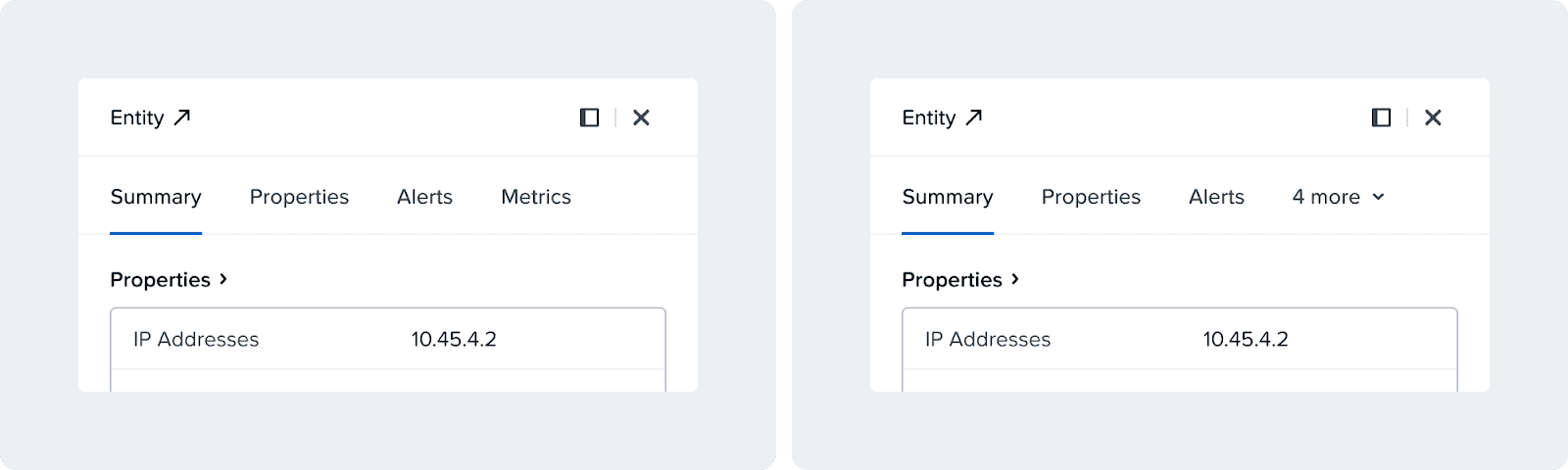
On average, up to four tabs would be shown upfront, but if you have more than that, it would collapse in the dropdown when using the width adaptive variant of the tab component.
If the side panel is expanded, it will show all tabs upfront.
Tab usage
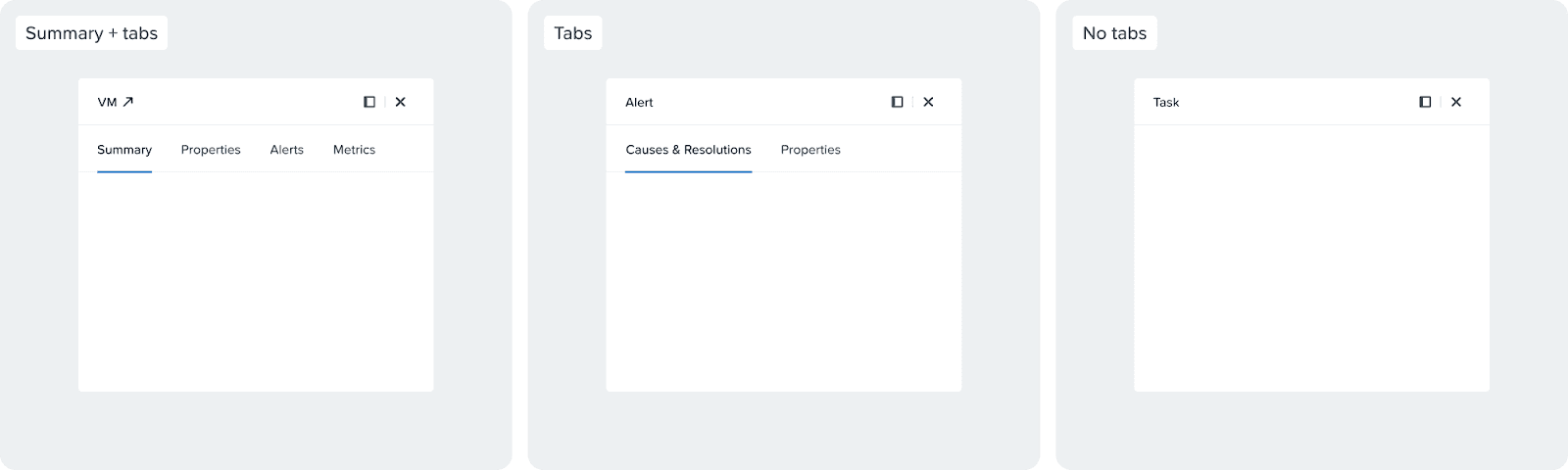
There are three different types of tab compositions that you can use.
Summary + tabs: used for extensive entities that need a summarized view in the beginning like VMs.
Only Tabs: used for smaller entities that need multiple tabs but no summary view link Alerts.
No tabs: used for the entities that have minimal information like Tasks.
Tab content
Simple widget tabs
Use this for tabs like summary.
Number of widgets: While pages in the large panel view can resemble full screen pages, we recommend limiting the number of widgets to four per tab in case of simple widget tabs.
Widget format: We also recommend keeping five or fewer rows per widget in tabs that have multiple widgets.
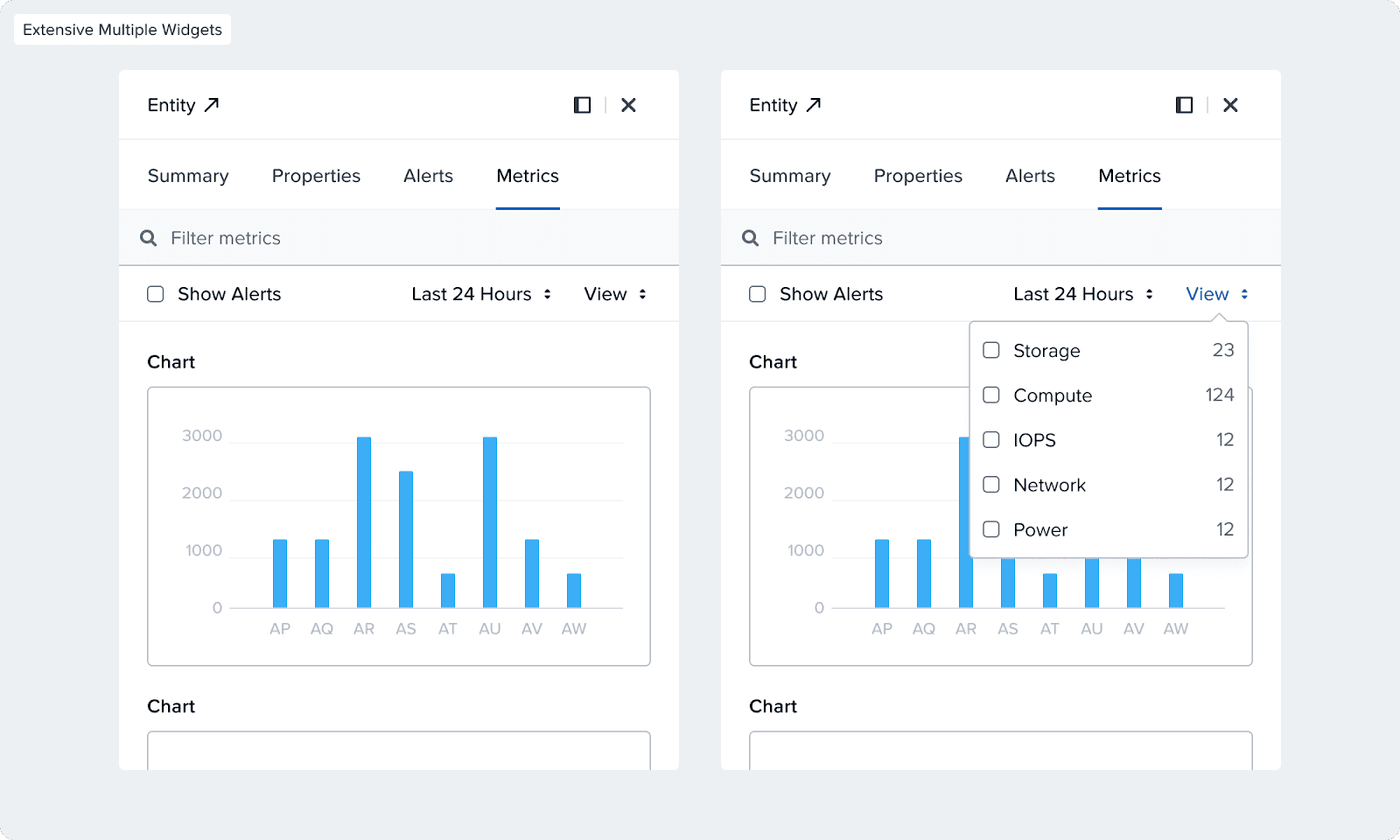
Extensive multi widget tabs
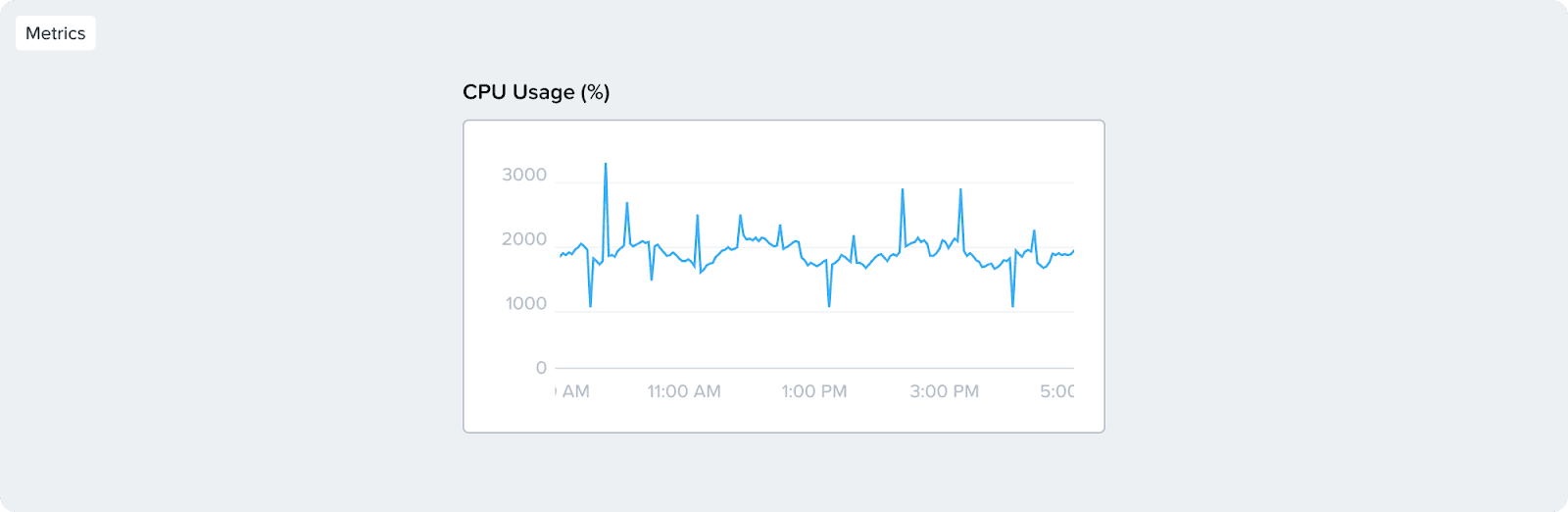
Use this for tabs like metrics.
Number of widgets: You can show more than 4 metrics widgets inside the tab.
Tab format: Use a quick search filter that filters content as you type.
Filter recommendations: Include a filter/view button and try to group filters instead of exposing all individual filters.
Tabs with small tables
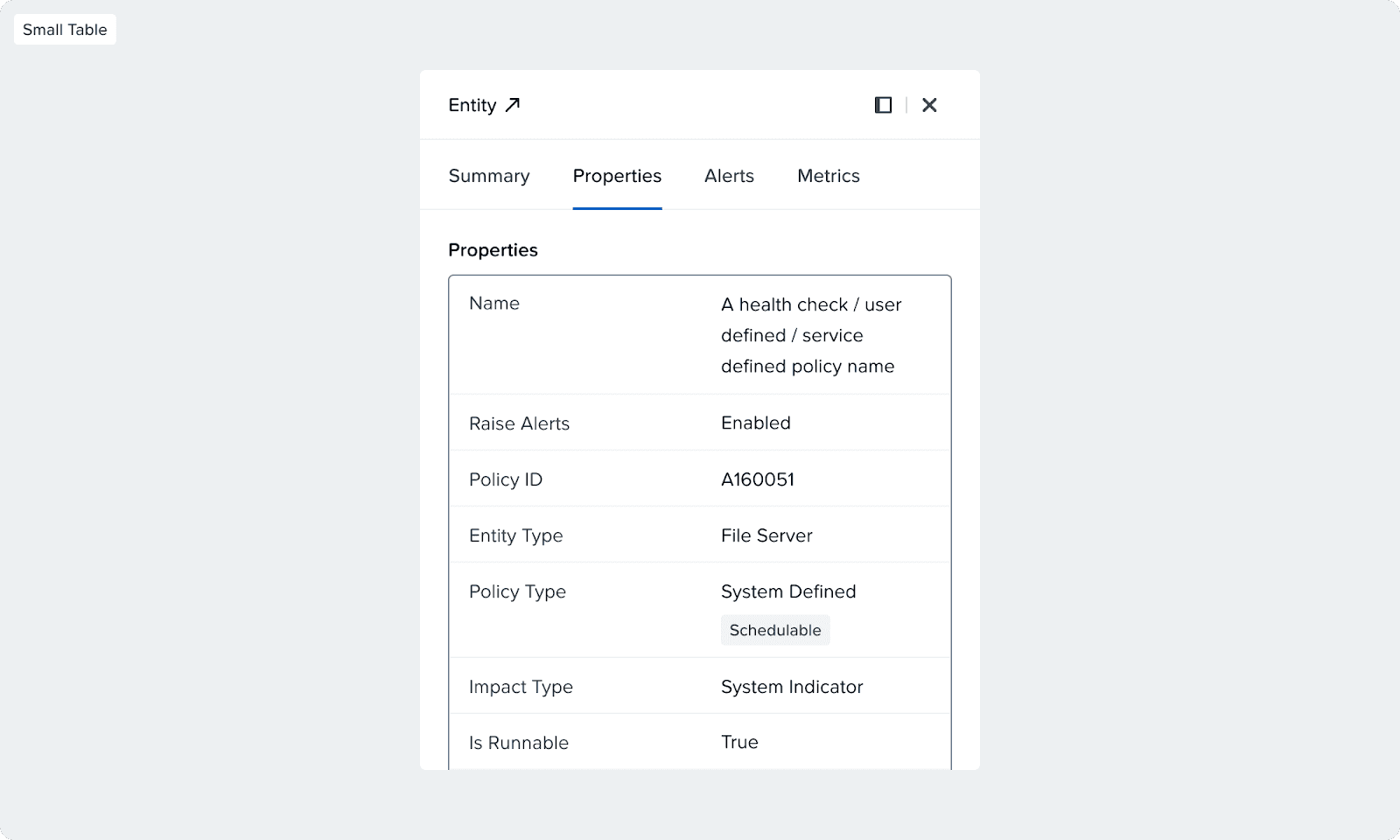
Use this for tabs like properties.
Number of tables: Show a long two column table and a single widget.
Widget format: There is no restriction on the number of rows used in this type of tab in the widget.
Tabs with large tables
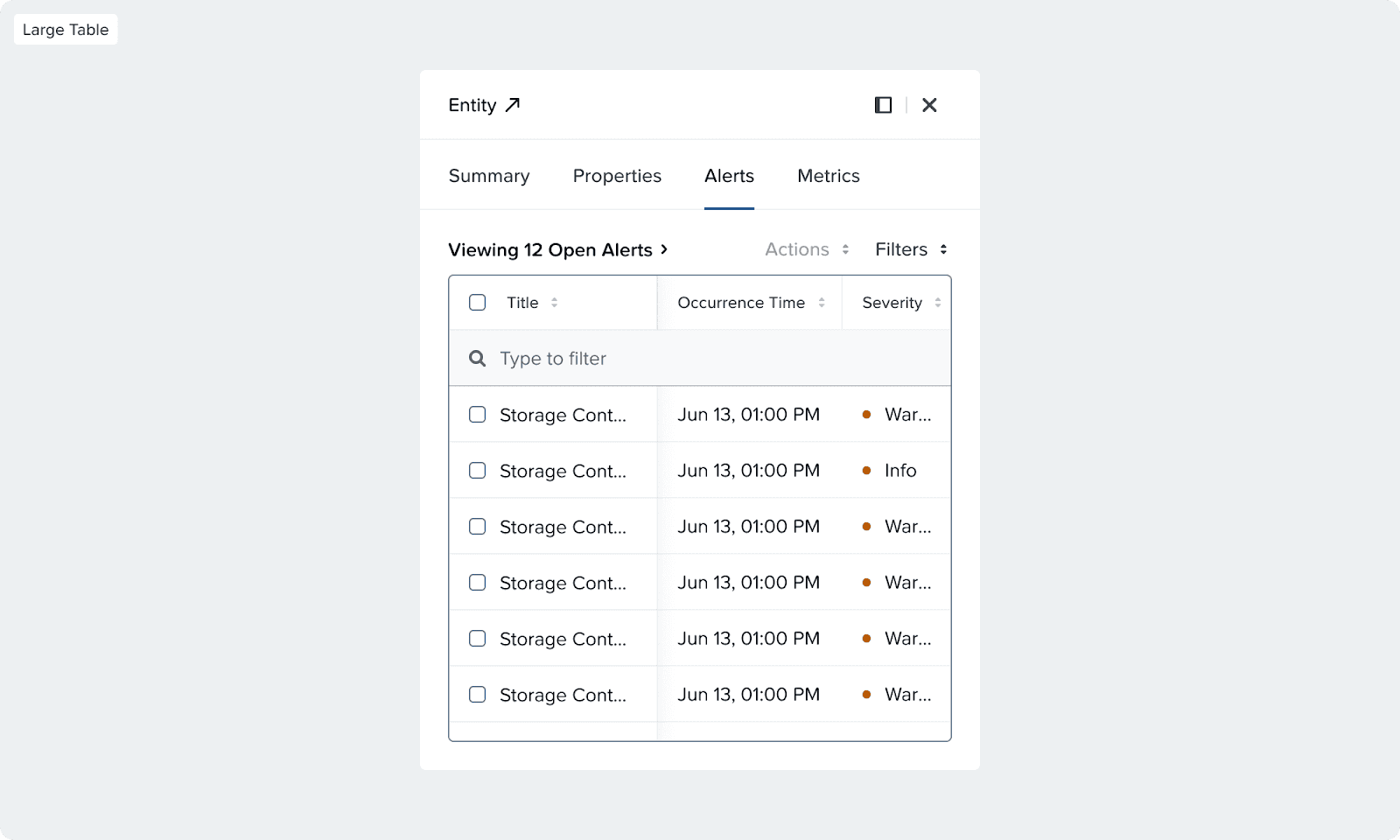
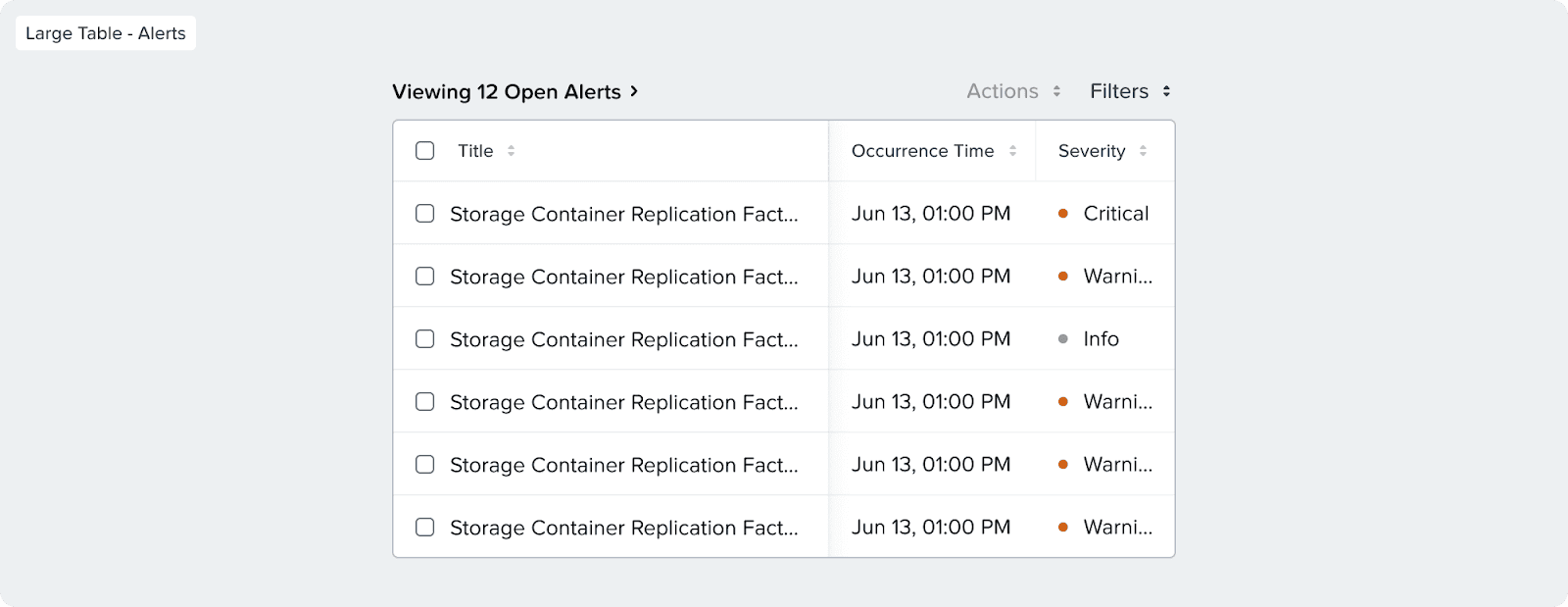
Use this for tabs like alerts where we need a large table, with multiple columns, checkboxes, filters, and actions.
Table format:
Ideally, use up to 4 columns, and expect to use horizontal scrolling when using more
than 3 columns.
There is no restriction on the number of rows used in this type of tab.
Table actions:
For tables with bulk actions, include checkboxes and place all actions inside a dropdown, unless there is only one possible action.
For tables without bulk actions, place action inside a dropdown at the right end of each row, unless there is only one possible action, expose the action icon by itself.
Filter recommendations:
Filters should be placed next to actions as a dropdown, unless there is only one filter it should be exposed as its own dropdown.
It’s recommended to carefully choose which filters to include, and to try to group filters instead of exposing all individual filters.
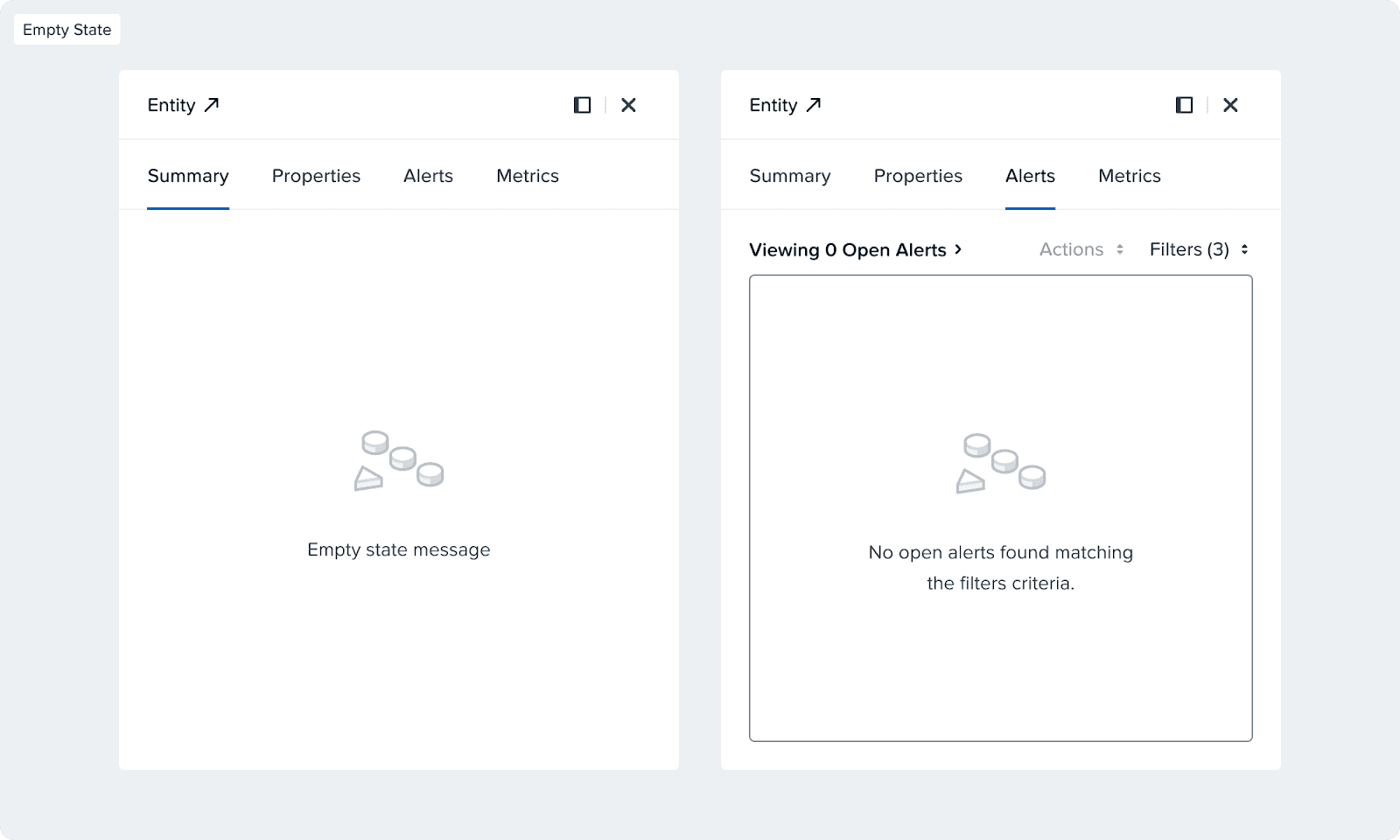
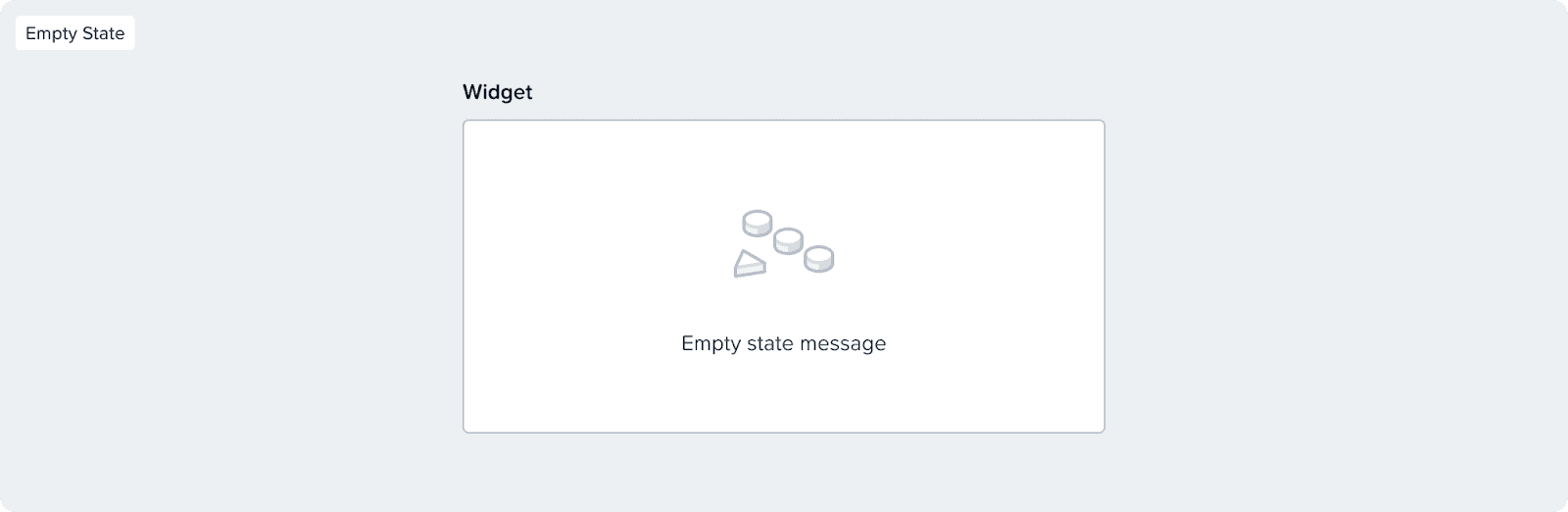
Tab empty states
Use this for tabs with empty states for tabs with and without tables.
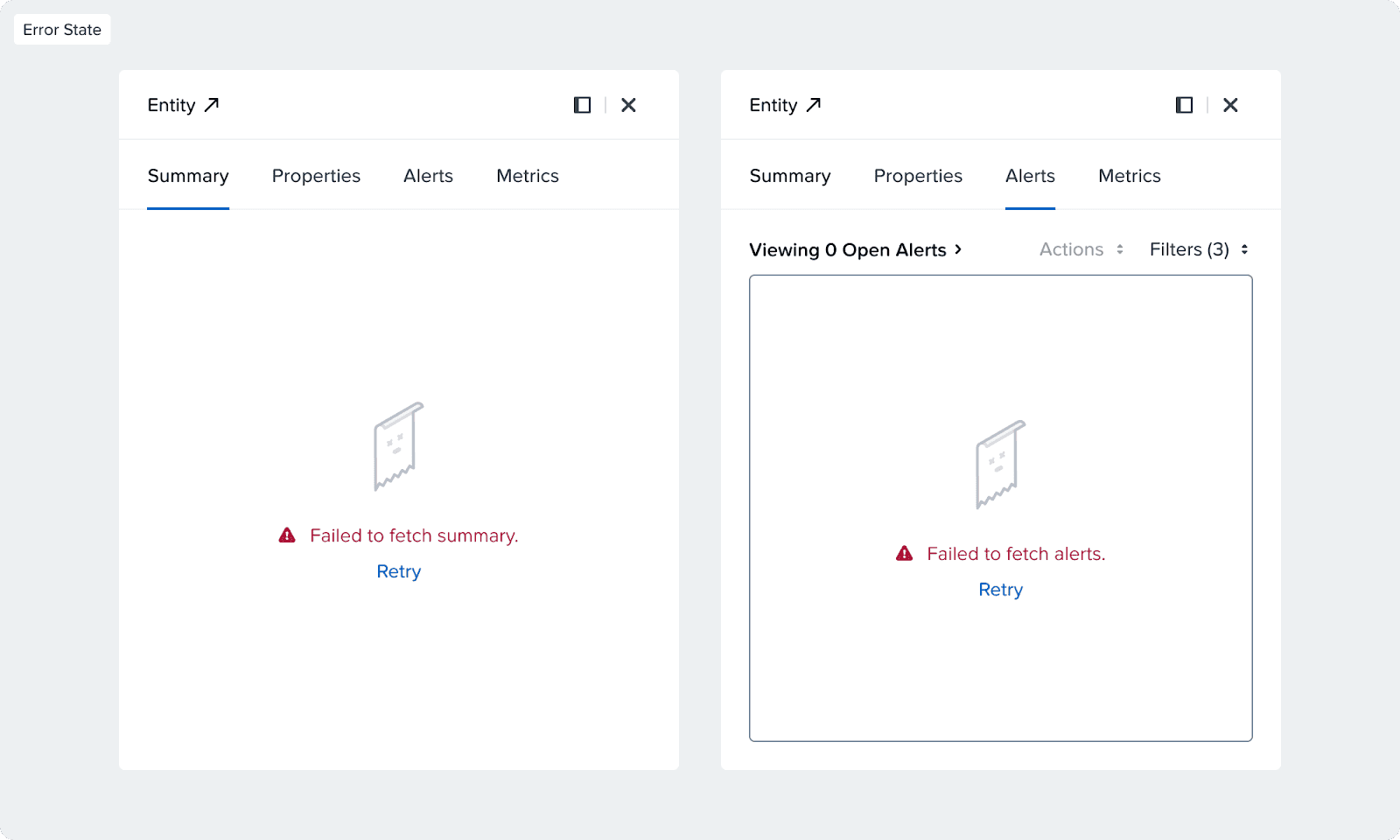
Tab error states
Use this for tabs with error states for tabs with and without tables.
3.3 Widget content and usage
Types of widgets (with examples of each)
Small table (two columns, left aligned)
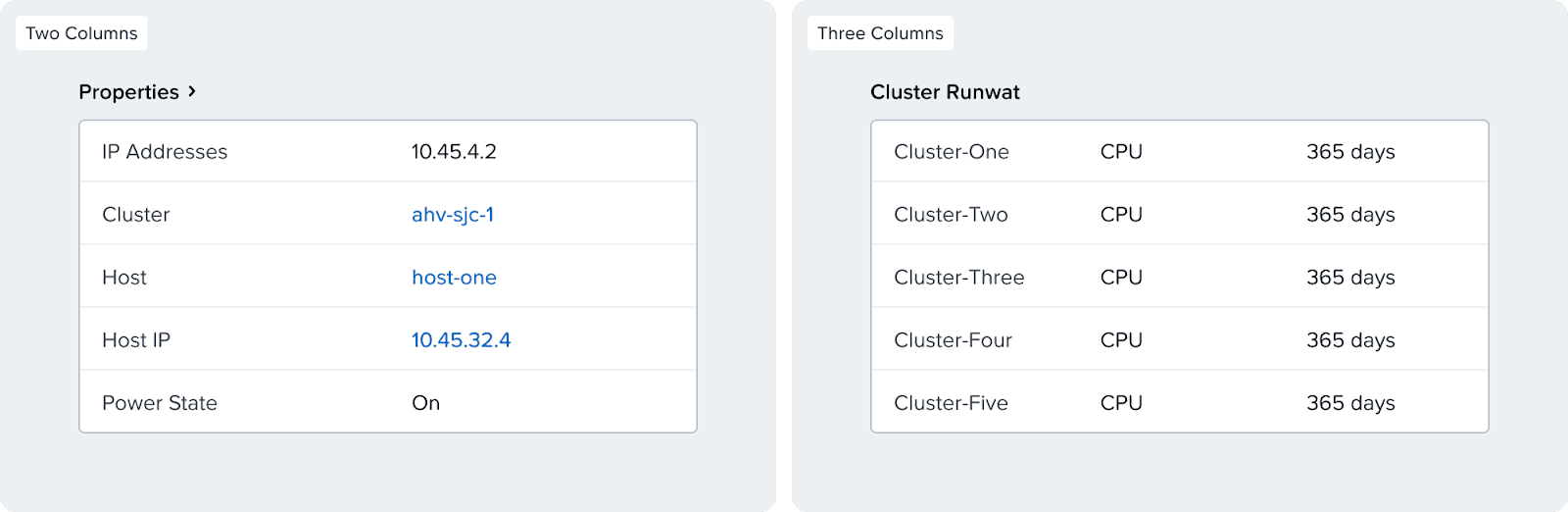
Large table (more than two columns)
Metrics chart
Empty states
3.4 Actions usage
Table actions
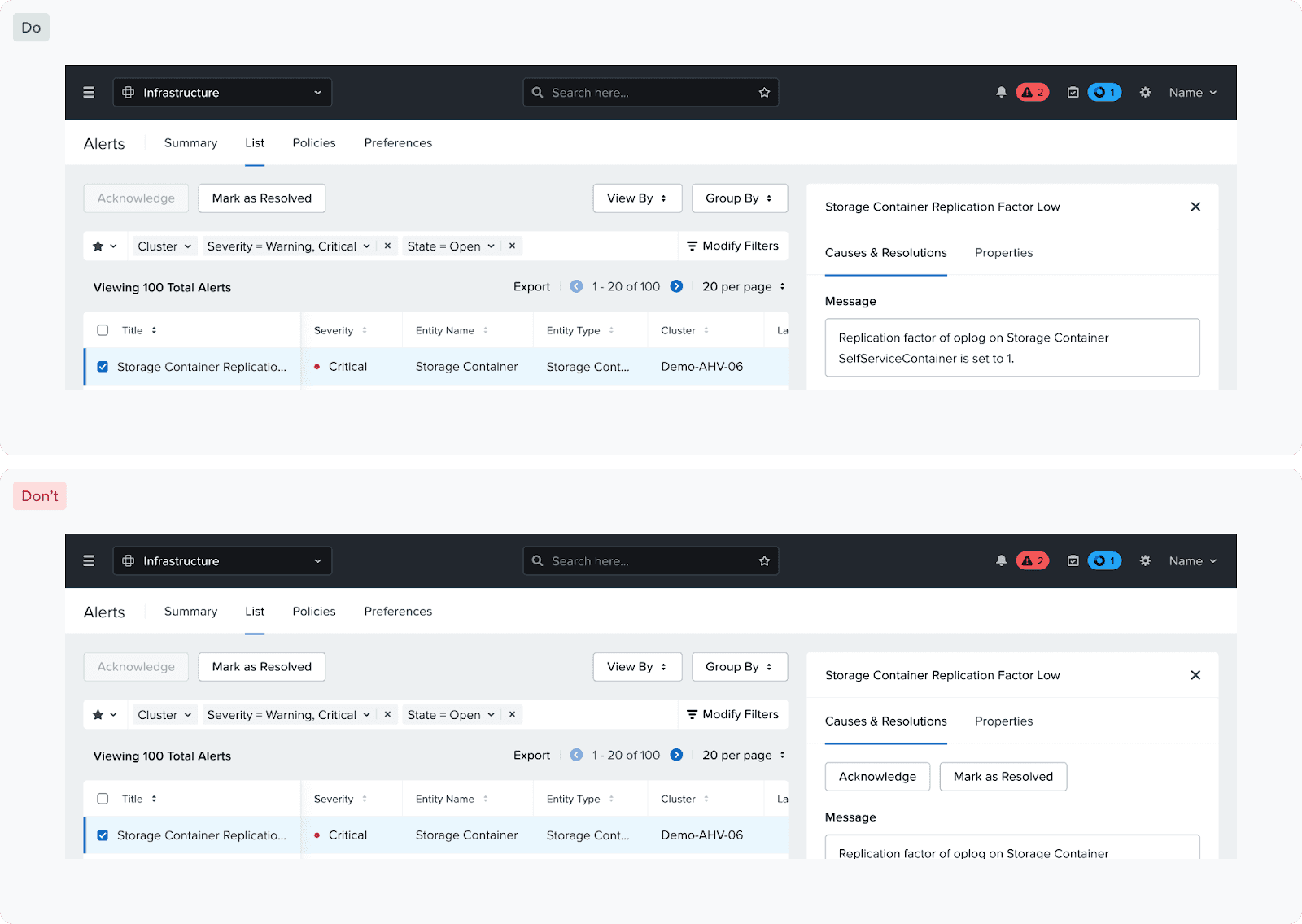
Standalone actions

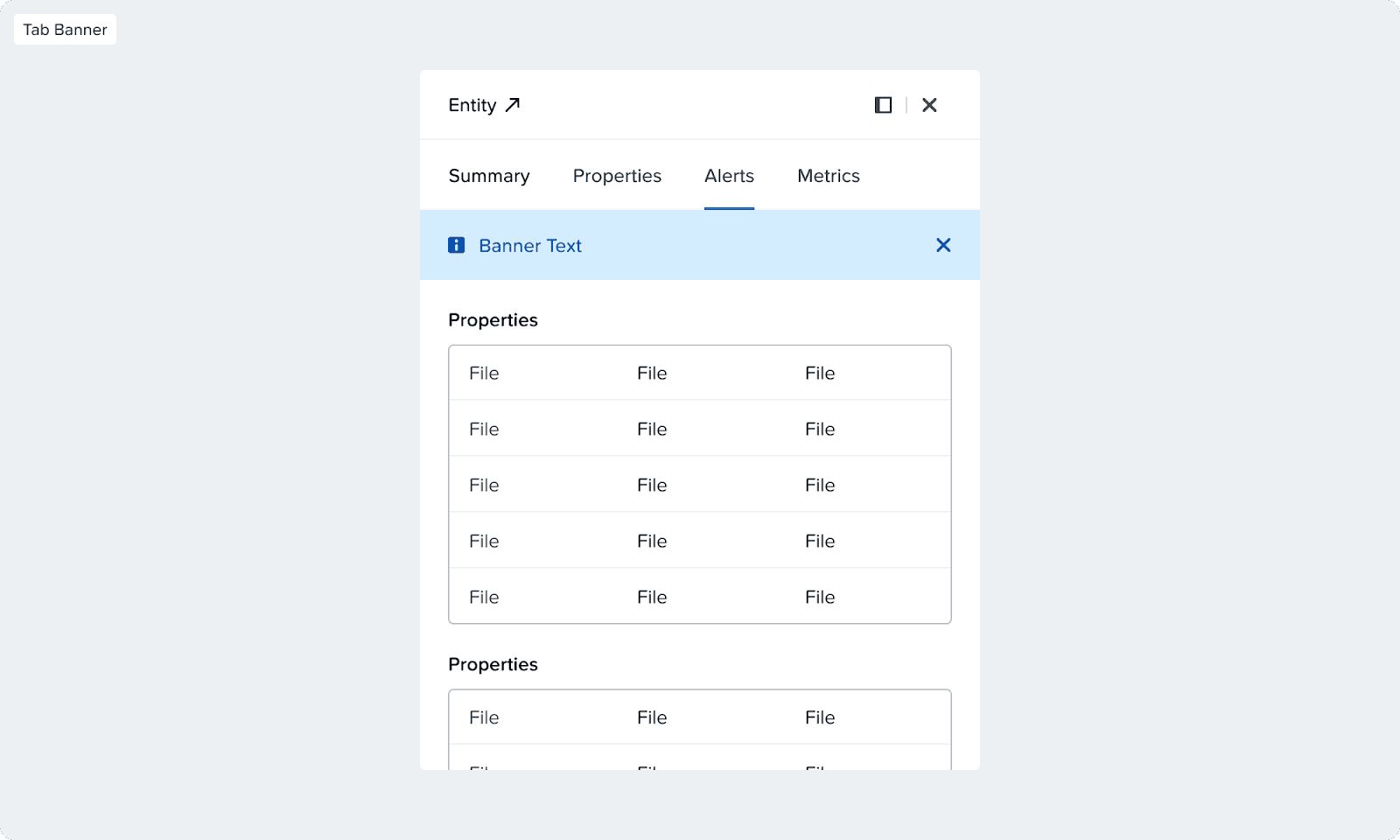
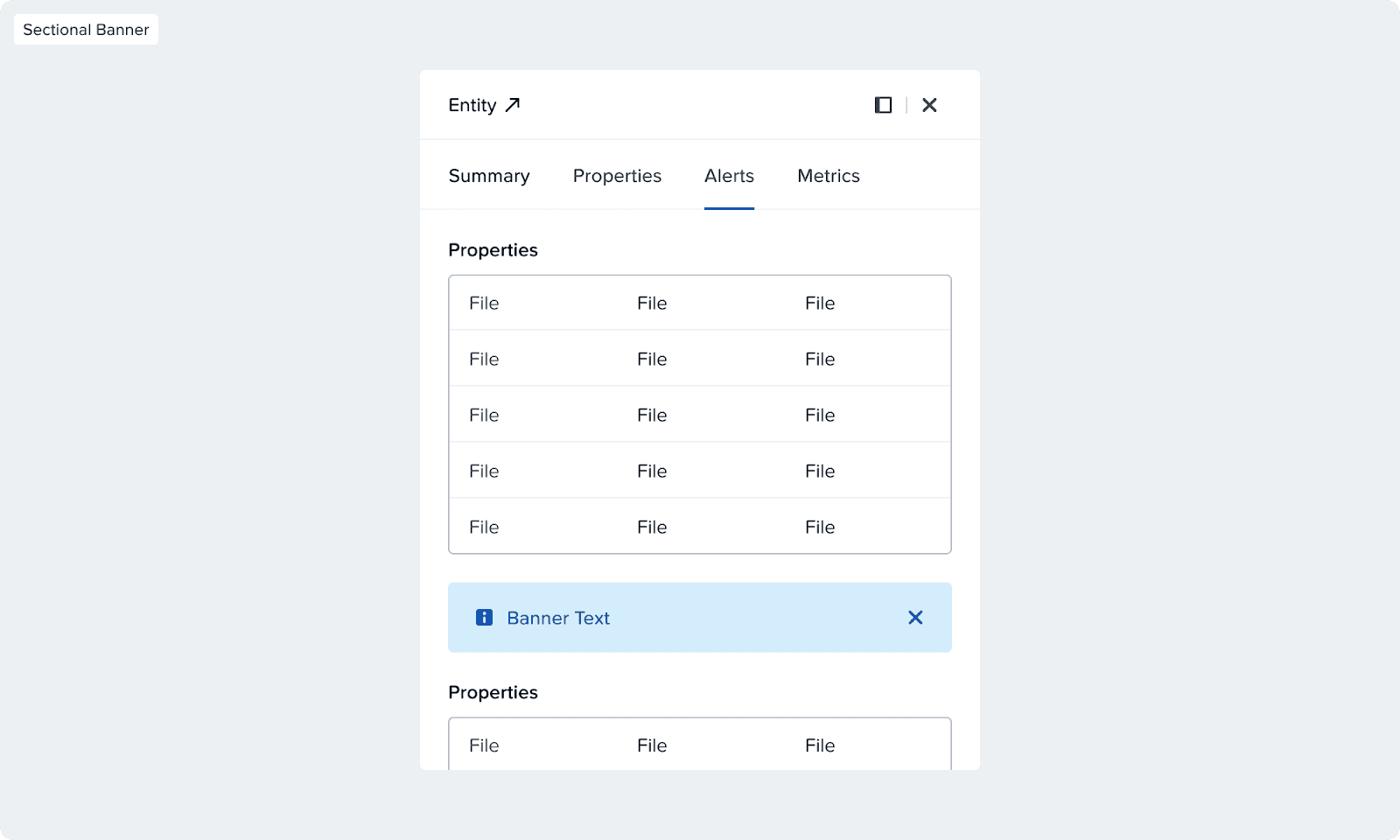
3.5 Banner and tooltip usage
Banner placement
Tab banner
Sectional banner
Help make this page more useful.